HaloPSA Integration
NOTE: HaloPSA Integration will also work for HaloITSM accounts
This guide walks through the end-to-end process for enabling the HaloPSA integration with Watchman Monitoring. It covers preparing HaloPSA, configuring Watchman Monitoring, and understanding what happens once the integration is live.
Create an Integration User
Halo creates tickets with an Agent user account. The first thing to do is create an agent for this integration
- Log in to HaloPSA with an administrator account.
- Navigate to
Configuration → Teams & Agents → Agents - Create a user with a username which makes sense for your team, eg:
WM Tickets - Email Address, Password, and AD Authentication can all be left blank.
- Ensure the user has the appropriate
Role(s) for ticket management, egAdministrator. This user will need at least:- View clients, sites, users, and assets
- Create and update tickets
- Read ticket types, priorities, and statuses
- Select
Is an API-only Agent(this prevents additional cost in your Halo account) - Agent details can be left blank.
Create a Halo Application/API Credentials
- Log in to HaloPSA with an administrator account.
- Navigate to
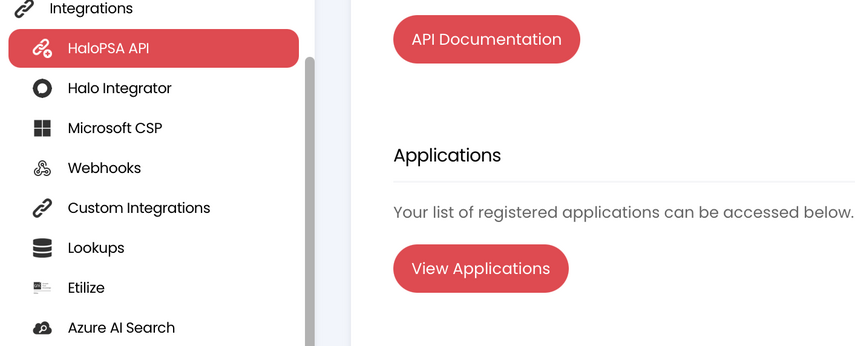
Configuration → Integrations → HaloPSA API. - Go to
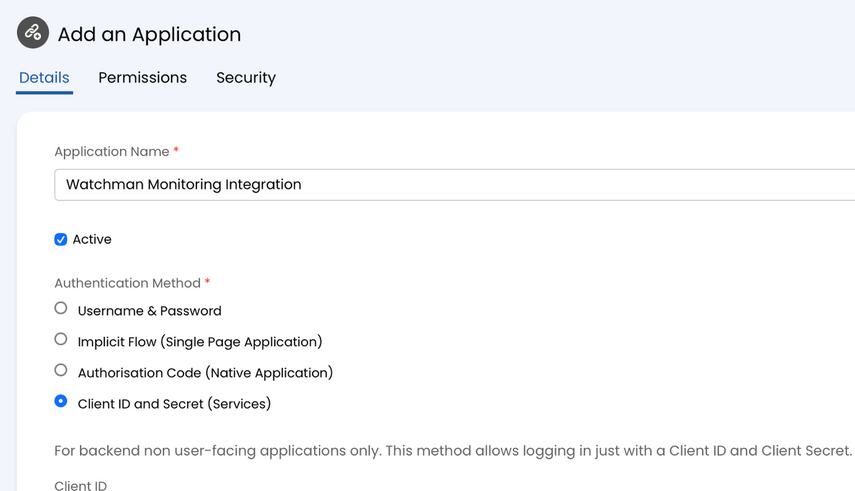
View Applicationsand ChooseNew Applicationand fill in the following:
Application Name:Watchman Monitoring
Authentication Method:Client ID and Secret (Services)
Login Type is Agent, and select the Integration User created for Watchman Monitoring. - In the Permissions tab, select
all*(required for the current integration). - Copy the Client ID, and Client Secret. You’ll need all three inside Watchman Monitoring.
- Save the application to activate the Client ID and Client Secret (your Client Secret will be obscured from this point onward).
Configure Watchman Monitoring
- Open Watchman Monitoring and go to `Integrations` via the Navigation sidebar.
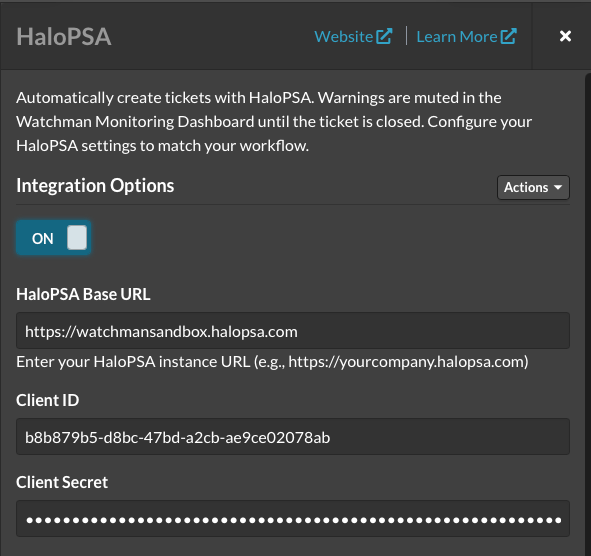
- Select HaloPSA.
- Toggle the Integration Options switch to ON.
-
Enter the credentials you gathered earlier:
HaloPSA Base URL (e.g.,https://yourcompany.halopsa.com))
Client ID
Client Secret - After you’ve entered the 3 fields above, the Halo API will be tested and your Ticket Configuration options will be populated. In Ticket Configuration, choose optional defaults:
Default Priority
Default Type - (Optional) Under Reference Email, enable “Set ticket requester using Reference Email when possible” if you want Watchman to map tickets to matching HaloPSA contacts automatically. (see next section for more details)
- Save changes. The integration becomes active immediately.
What to Expect After Enabling
- Ticket Creation: When a Watchman alert is generated, Watchman Monitoring creates a corresponding HaloPSA ticket. Alerts remain muted in Watchman until the HaloPSA ticket closes.
-
Computer Serial Mapping: If the computer has a serial number, Watchman Monitoring will look for any asset in HaloPSA with a matching Serial number. When a match is found:
- The ticket is filed against that asset’s client (customer) and site automatically.
- The requester on the ticket is set to the matched HaloPSA user so replies route correctly.
- If no user exists, Watchman falls back to the default client configured in Halo.
- Warning: If you rename or remove the “Serial Number” field on an asset type, serial number matching will break. The integration will continue to make tickets, but it will not match them to the right asset in Halo
- Pending Tickets: Watchman evaluates alert visibility, mute state, and existing tickets before creating new ones. Only actionable alerts generate tickets.
-
Ticket Details: Tickets include:
- Alert name and summary
- Computer details (Watchman ID, platform)
- Reference email/user/site/asset info when available
- Ticket Updates: When the original alert clears or is acknowledged as resolved, Watchman Monitoring closes the HaloPSA ticket if Halo reports it open.
- Manual Warnings: Users can trigger manual warnings; if HaloPSA is active, these warnings convert directly into HaloPSA tickets.
- Error Handling: Any failures (e.g., invalid credentials or permissions) are logged in Watchman Monitoring, marked on the company integration view, and surfaced in the activity feed so administrators can correct them quickly.