Google Workspace Integration - ChromeOS Device Monitoring
OVERVIEW
Watchman Monitoring’s Google Workspace integration automatically monitors your clients’ ChromeOS device fleets by connecting directly to Google Workspace Admin Console. No software installation is required on the ChromeOS devices - the integration uses Google’s Admin SDK API to sync device information every hour and provides comprehensive monitoring and alerting.
All ChromeOS devices are automatically added to your Watchman Monitoring dashboard and can be organized into groups, filtered, and monitored just like Mac and Windows computers. This gives MSPs a unified view of their entire client infrastructure in one monitoring dashboard.
WHAT GETS MONITORED
The integration monitors ChromeOS devices for:
Device Status and Enrollment
• Enrollment status and provisioning state
• Alerts for inactive, deprovisioned, or unenrolled devices
• Enrollment timestamp tracking
Operating System Updates
• Current ChromeOS version on each device
• Update compliance status
• Non-compliance alerts when devices fall behind
Security
• Boot mode verification (alerts for unverified boot)
• Firmware version tracking
• TPM (Trusted Platform Module) status
• Critical security alerts for issues requiring immediate attention
Hardware Information
• Processor model, architecture (ARM vs x64), and clock speed
• Total system RAM
• Disk capacity and current usage
• Device type (Chromebook, Chromebox, etc.) and model
Auto Update Expiration (AUE)
• End-of-life date tracking for each device model
• Advance warnings at 365, 180, and 90 days before expiration
• Critical alerts for devices past their AUE date
• Helps with proactive device replacement planning
Disk Usage
• Storage capacity and utilization tracking
• Alerts when devices exceed 80% or 90% capacity
User Assignment and Organization
• Assigned Google Workspace user for each device
• Organizational unit (OU) tracking
• Recent user activity
HOW IT WORKS
The integration connects to Google Workspace using a service account with domain-wide delegation. After initial setup, Watchman Monitoring automatically syncs device information every hour by querying Google’s Admin SDK API. New devices are automatically discovered and added to your dashboard, while deprovisioned devices are marked as missing. When issues are detected, plugin alerts are created that integrate with your existing ticketing systems and notification workflows.
CONFIGURATION GUIDE
Prerequisites
Before setting up the Google Workspace integration, you’ll need:
• A Google Workspace account with Super Admin access
• A Google Cloud Platform (GCP) project
• The ability to create service accounts and configure domain-wide delegation
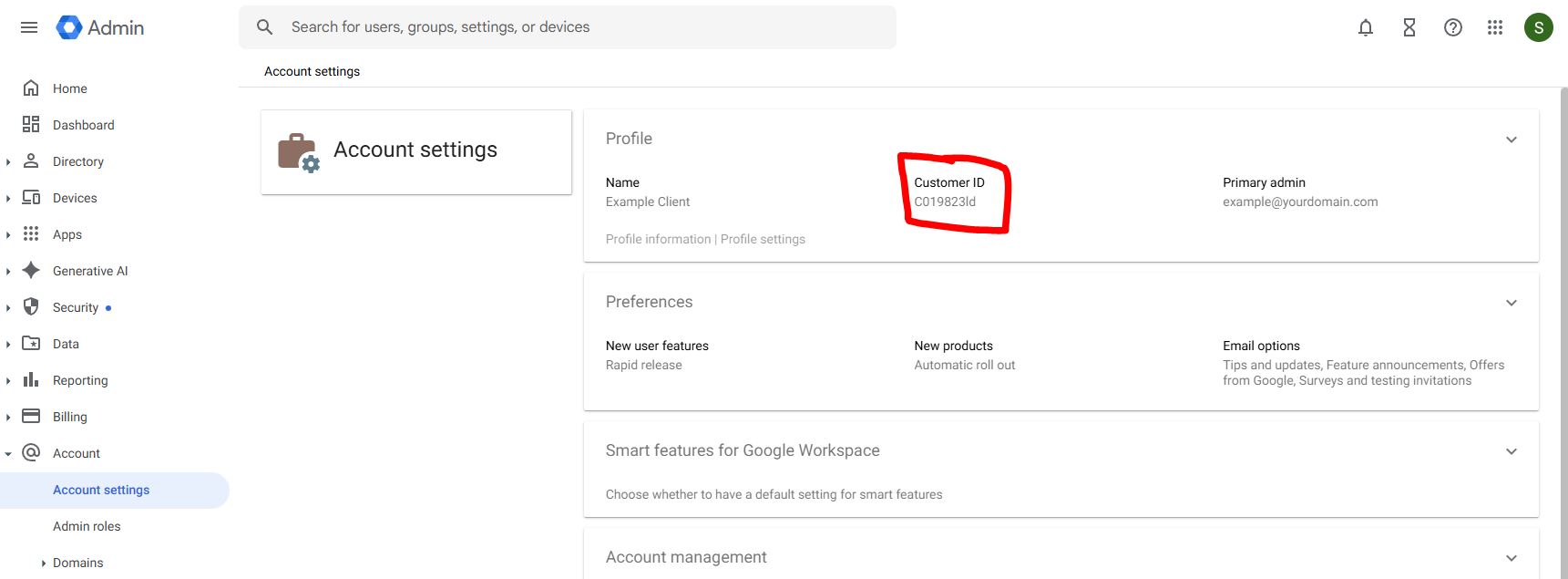
Step 1: Find Your Google Workspace Customer ID
-
Log into Google Admin Console at https://admin.google.com
-
Navigate to Account → Account Settings
-
Scroll down to find your Customer ID (format: C01abc123)
-
Copy the entire Customer ID including any prefixes
Step 2: Create a Google Cloud Service Account
-
Go to Google Cloud Console at https://console.cloud.google.com
-
Select your project (or create a new one if needed)
-
Navigate to IAM & Admin → Service Accounts
-
Click Create Service Account (NOTE: You may have to create a new Project in order to create a Service Account)
-
Enter a descriptive name (e.g., “Watchman Monitoring Integration”)
-
Click Done (you can skip the optional steps for now)
-
Note the service account email address (format: [email protected])
Step 3: Enable Required APIs
-
In Google Cloud Console, go to APIs & Services → Library
-
Search for and enable “Admin SDK API”
-
Search for and enable “Chrome Management API”
-
Wait a few moments for the APIs to fully enable
Step 4: Create and Download Service Account Key
-
In Google Cloud Console, go to IAM & Admin → Service Accounts
-
Click on the service account you created
-
Go to the Keys tab
-
Click Add Key → Create new key
-
Select JSON format and click Create
-
A JSON file will download - open it and copy the entire contents (you’ll need this in Step 6)
Important: Keep this JSON key file secure. It provides access to your Google Workspace data.
Step 5: Configure Domain-Wide Delegation
-
Log into Google Admin Console at https://admin.google.com
-
Navigate to Security → Access and data control → API controls
-
Under Domain-wide delegation, click Manage domain-wide delegation
-
Click Add new
-
Enter the Client ID from your service account JSON file (found in the “client_id” field)
-
In OAuth Scopes, enter:
https://www.googleapis.com/auth/admin.directory.device.chromeos.readonly -
Click Authorize
-
Ensure you have a Super Admin email address ready (this will be used in the integration configuration)
Step 6: Configure the Integration in Watchman Monitoring
-
Log into your Watchman Monitoring dashboard
-
Navigate to Integrations → Google Workspace
-
Click Connect a Google Workspace
-
Fill in the integration form:
Customer ID: Paste your Google Workspace Customer ID from Step 1
Service Account Email: Enter the service account email from Step 2
Private Key (JSON): Paste the entire contents of the JSON key file from Step 4 (should start with {“type”: “service_account”…})
Target Group: Select the Watchman Monitoring group where ChromeOS devices should be assigned
Workspace Super Admin Email: Enter the email address of a Super Admin in your Google Workspace domain
Enable this connection: Check this box to start syncing immediately (or leave unchecked to configure but not sync yet)
-
Click Connect Google Workspace
-
Watchman Monitoring will test the connection and display the number of ChromeOS devices found
Step 7: Verify the Integration
-
After connecting, click Test Connection to verify the integration is working
-
Check the Sync Information section for last sync time, device count, and sync status
-
Navigate to Computers to see your synced ChromeOS devices (they’ll appear with platform “ChromeOS” in the group you specified)
MULTIPLE INTEGRATIONS
You can configure multiple Google Workspace integrations per company to monitor different domains or organize devices from different clients into separate groups. Each integration syncs independently every hour and requires its own service account and domain-wide delegation setup.
BEST PRACTICES
Service Account Security
• Use a dedicated service account for Watchman Monitoring and keep your JSON key file secure
• Rotate service account keys periodically
• The integration only requires the minimum OAuth scope: admin.directory.device.chromeos.readonly
Group Organization
• Create dedicated groups for ChromeOS devices (e.g., “Client Name - Chromebooks”)
• Consider organizing by organizational unit if you have multiple OUs
• Devices can be moved to different groups after syncing if needed
Alert Configuration
• Configure your ticketing system to handle ChromeOS plugin alerts
• Set up email notifications for critical security alerts (unverified boot mode, non-compliant OS versions)
• Use AUE alerts to proactively plan device replacements with clients
Monitoring and Maintenance
• Review sync status regularly and address sync errors promptly
• Test the connection periodically to ensure continued access
TROUBLESHOOTING
Connection Test Fails
• Verify your Customer ID is correct (check for typos or extra spaces)
• Ensure your service account JSON key is complete and valid (must start with {“type”: “service_account”…})
• Check that domain-wide delegation is properly configured with the correct Client ID and OAuth scope
• Verify the Super Admin email has Super Admin privileges and both Admin SDK API and Chrome Management API are enabled
No Devices Found
• Verify devices are enrolled in Google Workspace and are ChromeOS devices (not Android)
• Check that your service account has the correct OAuth scope authorized and the Customer ID matches the domain
• Some devices may take time to appear in Google’s API after enrollment
Sync Errors
• Check the integration details page for specific error messages
• Verify your service account key hasn’t been deleted or rotated and domain-wide delegation is still configured
• Check Google Cloud Console for API quota limits
Devices Not Updating
• Sync runs automatically every hour - use Sync Now to force an immediate sync
• Verify the integration is enabled and check the Last Sync time
Missing Device Information
• Some hardware information (RAM, CPU) may not be available for all device models, especially ARM-based devices
• OS version information may be missing for devices that haven’t reported recently to Google
Rate Limiting
• Google’s API limits to 100 requests per 100 seconds per integration - Watchman Monitoring handles this automatically
• Very large fleets (thousands of devices) may take longer to sync
FREQUENTLY ASKED QUESTIONS
Q: Do I need to install anything on the Chromebooks?
A: No. The integration works entirely through Google’s Admin SDK API - no software installation required.
Q: How often does the integration sync?
A: Automatically every hour. You can manually trigger a sync using the Sync Now button.
Q: Can I monitor multiple Google Workspace domains?
A: Yes. Configure multiple integrations, each requiring its own service account and domain-wide delegation setup.
Q: What happens if a device is deprovisioned?
A: The device is automatically marked as “missing” during the next sync.
Q: Can I move devices to different groups?
A: Yes, but they’ll be moved back to the integration’s target group on the next sync unless you set “Override Client Group” on the device.
Q: How do I know when a device is approaching its end-of-life?
A: Watchman Monitoring tracks AUE dates and provides alerts at 365, 180, and 90 days before expiration.
Q: Can I use my existing ticketing system with ChromeOS alerts?
A: Yes. ChromeOS plugin alerts work with all standard Watchman Monitoring integrations.
Q: What permissions does the service account need?
A: Only the “admin.directory.device.chromeos.readonly” scope - read-only access to ChromeOS device information.
Q: Is my data secure?
A: Yes. Service account credentials are encrypted at rest, communication is over HTTPS, and only minimum required permissions are requested.