Enable Beacon for Immediate Offline Reporting for a Computer
Beacon Reporting allows for alerting on the availability of computers. An alert is triggered when a particular computer goes offline for the specified duration of time or if a computer boots from a bootable clone. Beacon Reporting is ideal for computers that require high-availability.
Enabling Beacon Reporting
Watchman Monitoring’s implementation of immediate offline reporting is unique in that it sends a proof-of-life for each check-in. This is a more advanced implementation as compared to traditional downtime reporting systems. Traditional reporting systems either maintain a simple thread or check for a response from the outside. The proof-of-life functionality of Beacon in Watchman Monitoring provides a more accurate validation that a computer is down or offline.
Enable Beacon Reporting on a computer by navigating to the Computer Overview.
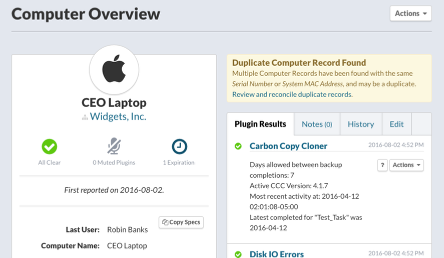
Click on the Edit tab, and scroll down to Beacon Reporting.

Beacon Reporting
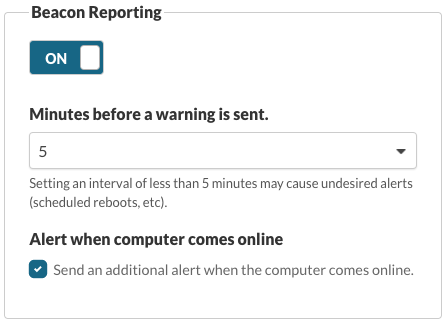
Beacon Reporting can be enabled for the computer by sliding the switch to On. Set the Minutes allowed before the computer is considered offline which is the interval after which the computer is considered to be offline. An additional alert can be elected to be sent when the computer comes back online.
Warning
Beacon Reporting will not appear on the computer record until it checks in after the initial setting. Having the computer check for updates will allow for Beacon Reporting to start immediately.
Once the Beacon Reporter has been enabled, you will see the Beacon Reporter plugin in the Plugin Results for the computer. With an all-clear report, the Beacon uptime will be displayed.

Bulk Editing Beacon Reporting Settings
You can edit the Beacon Reporting settings for several computer records by performing a search and using the Bulk Actions menu.
Perform a search and/or select the computers you would like to Archive.
The Bulk Actions menu will enable.

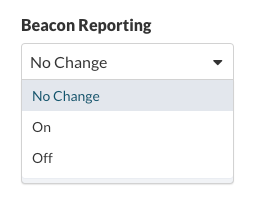
Click the Bulk Actions menu and select Edit Settings…

In the Beacon Reporting section, select On or Off from the dropdown menu.
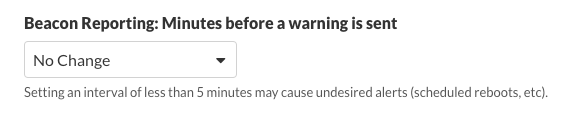
In the Beacon Reporting: Minutes before a warning is sent section, select the interval to send a warning from the dropdown menu.
In the Beacon Reporting: Alert when computer comes online section, select On or Off from the dropdown menu.
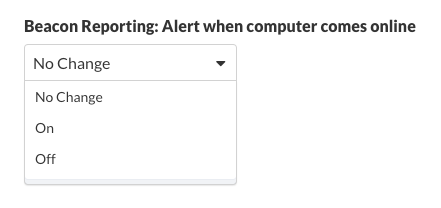
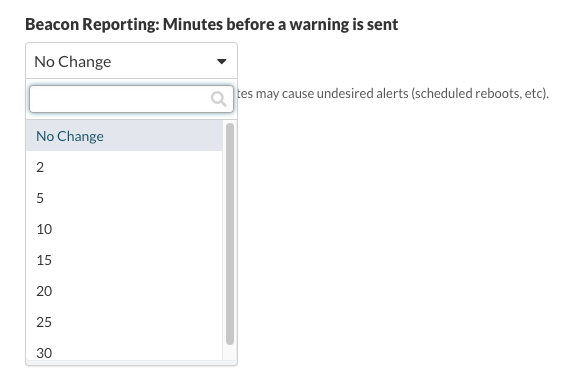
Click Save to save the new settings for all computers.

Beacon Alerts
A Beacon Alert email alert will be sent when a computer is considered to be offline for the time segment selected for Beacon Reporting, or if the computer reboots from a bootable clone. Beacon Alerts are displayed under the Beacon Reporter plugin in the computer Plugin Results.
Note
Subscribers with a ticketing integration will have a ticket generated in their integrated ticketing system.
Warning
Tickets will not be cleared automatically, if the computer comes back on-line, and should be closed once resolved to allow future alerts. If an additional alert when the computer comes back on-line, you will have an additional ticket created.
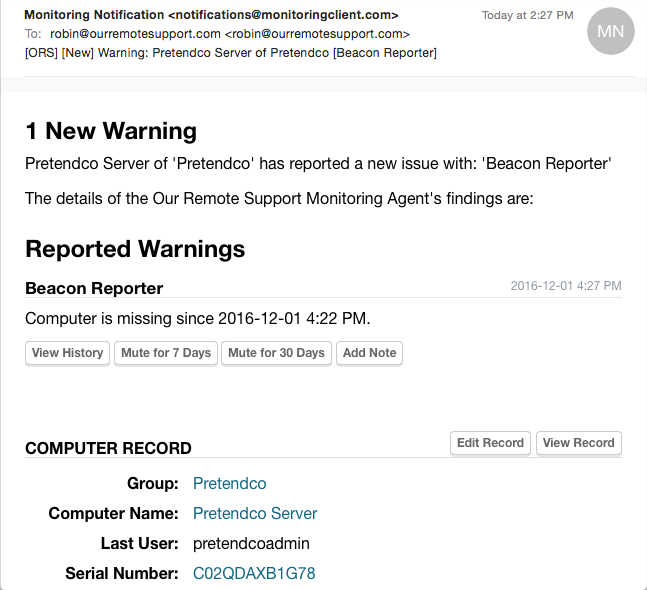
Beacon Reporting allows for advanced reporting when a computer goes offline for a specified amount of time. Beacon reporting is ideal for computers that require high-availability such as servers and other critical systems.
Failed to Report
When a Beacon Alert email is sent, the Beacon Reporter plugin result will show a result including the minutes allowed, and the timestamp of the last successful check in.

Boot Volume Change
If a computer with Beacon Alerts enabled reboots to a bootable clone, an Alert will report the Old and New UUID of the boot volume Drive.
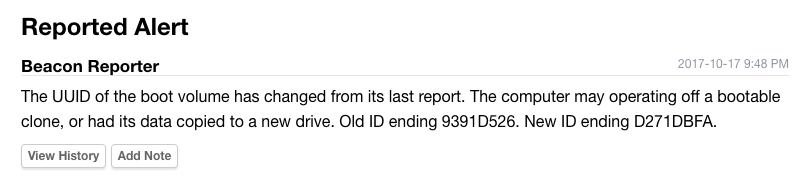
Warning
The upgrade process for 10.15 (Catalina) will report a Boot Volume Change. The identifier of the boot disk changes as macOS 10.15 splits a single boot volume into separate, system and data volumes.
Company Default Settings
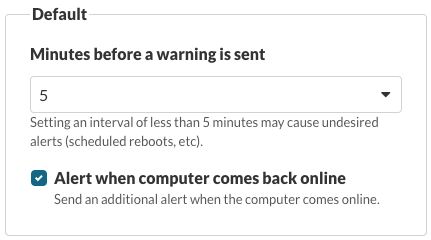
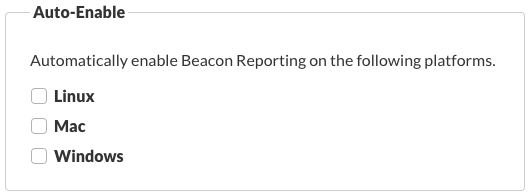
Default Beacon Reporting settings for warning interval and alerting when a computer comes online can be set Company-wide. Beacon Reporting can optionally Auto-Enabled for a platform by default.
To adjust the default Beacon Reporting settings, navigate to Settings > Beacon Reporting.
Warning
Default settings for Beacon Reporting only apply to newly enrolled computers.
Default Beacon Reporting
Set the Minutes allowed before the computer is considered offline which is the interval after which the computer is considered to be offline. An additional alert can be elected to be sent when the computer comes back online.
Auto-Enabling Beacon Reporting for a Platform
Beacon Reporting can be automatically enabled on a particular platform when newly enrolled. Select the platforms to auto-enable for Beacon Reporting.
Note
Auto-Enabling Beacon Reporting is only recommended for platforms that are primarily used at servers, e.g. Linux. Enabling Beacon Reporting by default for Mac and Windows Monitoring Clients will result in numerous status alerts.