Adding Screen Sharing to the Contact Menu
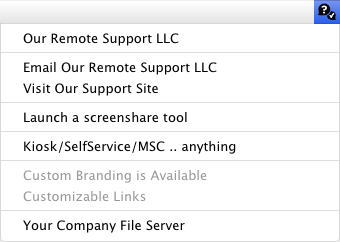
Watchman Monitoring’s Contact Menu offers an easy and uniform place for your users to launch or download your preferred screen sharing or remote support tool.
Note
The following document uses the identifiers of URL, URI, and Bundle ID to differentiate the item type you should choose. Learn more about the Contact Menu Item Configuration here.
Screen Sharing and Remote Support applications can be called several ways, however, the Bundle ID method has proven to be the most flexible. The following is a list of methods for various screen sharing and remote support tools.
Screen Sharing / Remote Support
Zoom
Start a Meeting
- URI: zoommtg://zoom.us/start?browser=chrome&confno=123456789&zc=0&stype=100&sid=lBGPGzGdT8–2Yf3kjDY5gg&uid=lBGPGzGdT8–2Yf3kjDY5gg&token=xxxxxx&uname=Betty
Join a Meeting
- URI: zoommtg://zoom.us/join?confno=123456789&pwd=xxxx&zc=0&browser=chrome&uname=Betty
Additional details on Zoom’s URI Schema.
Splashtop
- URI: st-business://[email protected]&mac=C04A001C72EC
GoToMeeting
- Apple Bundle ID: com.citrixonline.GoToMeeting
- URI: http://www.joingotomeeting.com/
TeamViewer
- URI: https://start.teamviewer.com/123456789 (Requires TeamViewer 10 or greater)
- Apple Bundle ID: com.teamviewer.TeamViewerQS
- Apple Bundle ID: com.teamviewer.TeamViewer
- Apple Bundle ID: com.teamviewer.TeamViewerHost
Note
When using the Apple Bundle Identifier, the Contact Menu will try the following, in order:
- com.teamviewer.TeamViewerQS QuickSupport, TeamViewer (Full), then Host
- com.teamviewer.TeamViewer TeamViewer (Full), QuickSupport, then Host
- com.teamviewer.TeamViewerHost Host, QuickStart, then Teamviewer (Full)
ScreenConnect
- Apple Bundle ID: com.elsitech.screenconnect.client
LogMeIn
- Apple Bundle ID: com.logmein.join.me
VNC / ScreenSharing
- URI: vnc://hostname[:port]
- Apple Bundle ID: com.apple.ScreenSharing
RDP / Remote Desktop Client
Launch a specific Remote Desktop Client session. Learn more about the RDP URI here.
- URI: rdp:full address=s:hostname[:port]
Note that rdp:full address has a space, and should not be URL encoded when entered into the dashboard.
Adding Remote Access to your Contact Menu
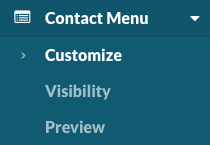
To add Remote Access to your Contact Menu, add a new Application to your contact menu here:
https://app.monitoringclient.com/contact-menu/customize
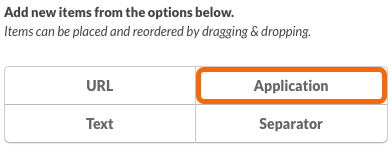
Add an Application item to your Menu by clicking the Application button.
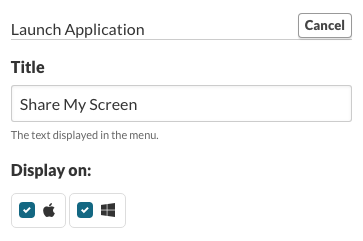
Give the menu item a Title such as Share My Screen.
Note
We are using TeamViewer as an example, but feel free to supplement your preferred tool.
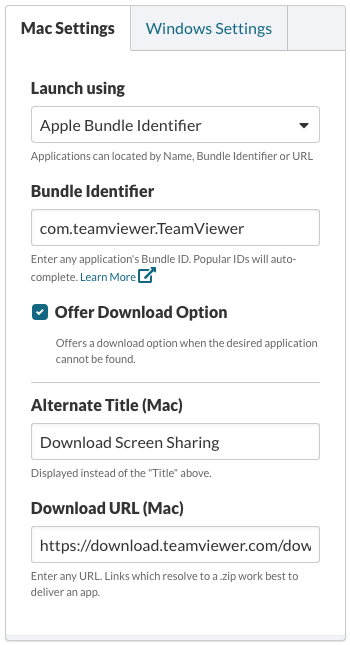
Mac Settings
Select Apple Bundle Identifier from the Launch using drop-down.
For the Bundle Identifier, enter com.teamviewer.TeamViewerQS
Selecting the Offer Download Option will display the link to the download URL provided, if TeamViewer is not located on the computer.
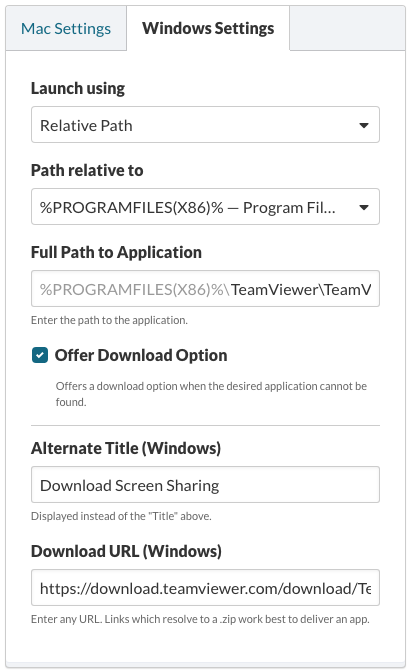
Windows Settings
Select Relative Path from the Launch using drop-down.
For the Path relative to, and select %PROGRAMFILES(X86)% — Program Files (Prefer 64-bit).
For the Full Path to Application, enter TeamViewer\TeamViewer.exe
Selecting the Offer Download Option will display the link to the download URL provided, if TeamViewer is not located on the computer.
Permalink: https://watchmanmonitoring.com/contact-menu-screensharing