Contact Menu Tips & Tricks
The following are Tips and Tricks for getting the most out of your customizable Support Menu. The Contact Menu supports URI/URL, macOS Application Names, Apple Bundle Identifiers, Windows Absolute Paths and Windows Relative Paths.
Note
The following document uses the identifiers of URL, URI, Apple Bundle ID, and Windows Relative Path to differentiate the item type you should choose. Learn more about the Contact Menu Item Configuration here.
Warning
If a URI is configured, but does not appear in the contact menu, this may indicate that no application is configured to accept that URI. Attempt the URI in Safari, or at the command line with
open <uri://your-uri>
Tips & Tricks
- Be sure to use the Testing mode to get started. You can make any group the Testing group, and all changes are saved. You can also use the Preview tab to setup.
- Hold down the Option or Control key when you click on the first menu item to open that computer’s Watchman Monitoring record in the default Web Browser. Login will be required, so skip the “Keep me signed in…” when on your end-users’ computers.
- The menu can be disabled for any single computer (the persnickety boss, or the conference room computer.) Look in the Action menu for the toggle.
Menu Ideas
Text
Use Gray Text on the menu to display:
- Your Phone Number / Support Phone Number
- Title Sections of links (File Sharing, Social Media, FileMaker Databases, Training Resources, etc.)
Links
WebMail
- URL: https://webmail.domain.com
- URL: https://mail.google.com (Gmail)
Provide an easy link to their webmail, gmail, etc.
Your Website
- URL: https://ourremotesupport.com
- URL: https://www.facebook.com/OurRemoteSupport
- URL: https://twitter.com/ourremotesupport
- URL: https://www.linkedin.com/company/123456
Link to you website, Facebook, Twitter, LinkedIn, etc.
Mailto URI
If you’d like your end-user’s email client to create an email to support, the entry would be:
- URI: mailto:[email protected]?Subject=Support Request&Body=Enter Your Request Below
mailto: elements start with the to, optionally followed with a ? before other components, such as:
mailto:[email protected]
CC=
BCC=
Subject=
Body=
Warning
An ampsersand `&` is required between components, as shown in the example above.
Note
Spaces are automatically html encoded for you.
Support Resources
Diagnostic Web Sites
iCloud Status / Apple System Status
- URL: https://www.apple.com/support/systemstatus/
Determine Apple’s current System Status for the AppStore, iCloud, AppleID and more.
WAN IP Address
- URL: http://IPChicken.com
- URL: http://whatsmyip.org
- URL: https://www.google.com/?ion=1&espv=2#q=what+is+my+ip
Use one of the above URLs to help you determine the WAN IP Address of the machine.
Diagnostic Tools
The following built-in tools and utilities can be put within easy reach through the contact menu.
Activity Monitor
- Apple Bundle ID: com.apple.ActivityMonitor
Network Diagnostics
- Apple Bundle ID: com.apple.NetworkDiagnostics
Wireless Diagnostics
- Apple Bundle ID: com.apple.wifi.diagnostics
Console (Logs)
- Apple Bundle ID: com.apple.Console
Disk Utility
- Apple Bundle ID: com.apple.DiskUtility
System Information (System Profiler)
- Apple Bundle ID: com.apple.SystemProfiler
Windows Task Manager
- Windows Relative Path: %windir%\system32\taskmgr.exe
System Preferences
System Preferences can be used in the menu by using the Application Specific URL option. To link to an anchor (a specific tab within a Preference Pane) is generally the URL followed by ?TabName (See Keyboard PrefPane example below).
Network Preference Pane
- URI: x-apple.systempreferences:com.apple.preference.network
Software Update Preference Pane
- URI: x-apple.systempreferences:com.apple.preferences.softwareupdate
Keyboard Preference Pane: Text Tab
- URI: x-apple.systempreferences:com.apple.preference.keyboard?Text
The following AppleScript will help you determine the Preference Pane ID:
tell application "System Preferences"
	set myId to the id of current pane
end tell
The following AppleScript will help you determine the Anchor of the current Preference Pane:
tell application "System Preferences"
	set myAnchor to anchors of current pane
end tell
Note
Open System Preferences and select a Preference Pane before running these scripts.
Windows Control Panel
Windows Relative Path: %WINDIR%\System32\control.exe
Training Resources
The following are resources to direct clients or customers for information and training.
Apple.com
Mac Basics Self-paced Learning
- URI: http://www.apple.com/support/macbasics/
Keyboard Shortcuts
- URI: https://support.apple.com/en-us/HT201236
iPhone User Guide
- URI: http://help.apple.com/iphone
iPad User Guide
- URI: http://help.apple.com/ipad
Mac User Guide
- URI: https://support.apple.com/guide/mac-help/welcome/mac (Big Sur)
- URI: http://help.apple.com/machelp/mac/10.12/ (Sierra)
- URI: http://help.apple.com/machelp/mac/10.11/ (El Capitan)
- URI: http://help.apple.com/machelp/mac/10.10/ (Yosemite)
YouTube
Post your own screencast training videos and link to them in the Contact menu.
Video Link
- URI: http://www.youtube.com/v/VIDEO_IDENTIFIER
YouTube Channel
- URI: https://www.youtube.com/user/USERNAME
Vimeo
Post your own screencast training videos and link to them in the Contact menu.
Video Link
- URI: https://vimeo.com/VIDEO_IDENTIFIER
Vimeo Channel
- URI: https://vimeo.com/USERNAME
Zendesk
Help Center
- URI: https://[subdomain].zendesk.com/hc/
Link to your Zendesk Help Center to access your support documents.
Submit Request
- URI: https://[subdomain].zendesk.com/hc/requests/new
Link to your Zendesk Request form for submitting tickets. Helpful if email is not configured on the machine.
See All Requests
- URI: https://[subdomain].zendesk.com/hc/requests/
Computer Management
Direct Users to self-service tools for software installation and updates.
Addigy
Launch MacManage
- Apple Bundle ID: com.electron.macmanage
Apple Mac AppStore
Mac AppStore
- Apple Bundle ID: com.apple.appstore
- URI: macappstore://
- URI: macappstore://showUpdatesPage (Open directly to MAS Updates Page)
Munki
Managed Software Center
- Apple Bundle ID: com.googlecode.munki.ManagedSoftwareCenter
- URI: munki://category-all (Open MSC to display all Apps)
- URI: munki://developer-google (Open MSC and search for Apps from Google)
- URI: munki://updates (Open MSC to Updates section)
Mac-MSP Gruntwork
Run Maintenance Manually
- Apple Bundle ID: com.mac-msp.gruntwork.manualstart
HEAT LANrev (formerly Absolute Manage)
OnDemand Software
- URI: lanrevagent://ShowOnDemandPackages
Filewave
Filewave Admin
- Apple Bundle ID: com.filewave.admin
- macOS Application Name: FileWave Admin.app
- Windows Relative Path: %PROGRAMFILES(X86)%\FileWave\FileWaveAdmin.exe
Self-Service Kiosk
- Apple Bundle ID: com.filewave.fwGUI
- Windows Relative Path: %PROGRAMFILES(X86)%\FileWave\fwGUI.exe
JAMF Pro / Casper
Self Service
- Apple Bundle ID: com.jamfsoftware.selfservice.mac
JAMF Item URLs
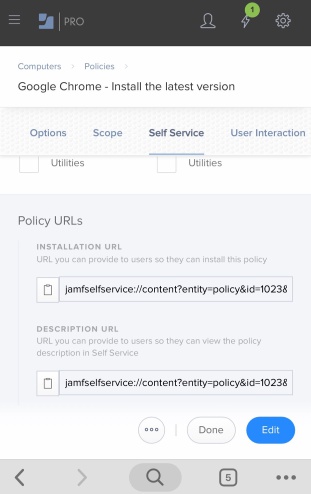
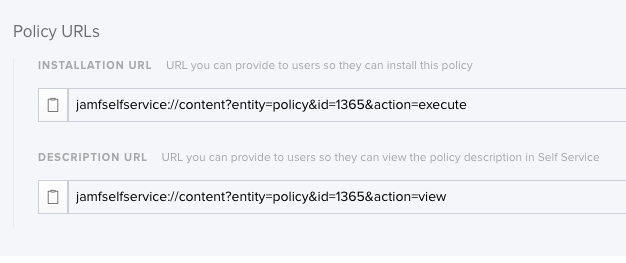
Allow your users to simply click the link to install the item or view the item description without having to search for it in Self Service. When you make an item (excluding patch policies) available in Self Service, the following two URLs are available in Jamf Pro:
Installation URL—URL you can provide to users so they can install the item.
- URI: jamfselfservice://content?entity=policy&id=<idofyourpolicy>&action=execute
Description URL—URL you can provide to users so they can view the item description in Self Service.
- URI: jamfselfservice://content?entity=policy&id=<idofyourpolicy>&action=view
Note
You can copy an item URL from Jamf Pro by clicking the Clipboard button after configuring the item.
Tip
Use as an alternative link for an application, such as Share My Screen or link to an optional upgrade such as the latest macOS.
Communication
Chat
iChat / SMS / iMessage
- Apple Bundle ID: com.apple.iChat
- URI: imessage://[email protected]
- URI: imessage://1-408-555-1212
- URI: ichat://[email protected]
- URI: sms://1-408-555-1212
Note
sms://is supported by some VoIP desktop clients, otherwise is directed at iOS and mobile web applications.
Warning
ichat://may be deprecated on newer Mac Operating Systems in favor ofimessage://.
XMPP (Jabber)
- URI: xmpp://[email protected]
Slack
- Apple Bundle ID: com.tinyspeck.slackmacgap
- URI: http://TEAM-ID.slack.com
- URI: slack:channel?id=<CHANNEL-ID>&team=<TEAM-ID>
HipChat
- Apple Bundle ID: com.hipchat.HipChat
Skype
- URI: skype:live:skypeusername?chat
Voice
Skype
- URI: skype:live:skypeusername?call
Facetime Audio
- Apple Bundle ID: com.apple.FaceTime
- URI: facetime-audio://[email protected] (OS X 10.10 or greater)
- URI: callto:+18005551212
- URI: tel:+18005551212
Facetime
- Apple Bundle ID: com.apple.FaceTime
- URI: facetime://[email protected]
Screen Sharing / Remote Support
Zoom
Start a Meeting
- URI: zoommtg://zoom.us/start?browser=chrome&confno=123456789&zc=0&stype=100&sid=lBGPGzGdT8–2Yf3kjDY5gg&uid=lBGPGzGdT8–2Yf3kjDY5gg&token=xxxxxx&uname=Betty
Join a Meeting
- URI: zoommtg://zoom.us/join?confno=123456789&pwd=xxxx&zc=0&browser=chrome&uname=Betty
Additional details on Zoom’s URI Schema.
Splashtop
Splashtop Business
- URI: st-business://[email protected]&mac=C04A001C72EC
More about Splashtop Business URI.
Splashtop Streamer
- URI: st-streamer://com.splashtop.streamer
More about Splashtop Streamer URI Commands.
GoToMeeting
- Apple Bundle ID: com.citrixonline.GoToMeeting
- URI: http://www.joingotomeeting.com/
TeamViewer
- URI: https://start.teamviewer.com/123456789 (Requires TeamViewer 10 or greater)
- Apple Bundle ID: com.teamviewer.TeamViewerQS
- Apple Bundle ID: com.teamviewer.TeamViewer
- Apple Bundle ID: com.teamviewer.TeamViewerHost
Note
When using the Apple Bundle Identifier, the Contact Menu will try the following, in order:
- com.teamviewer.TeamViewerQS QuickSupport, TeamViewer (Full), then Host
- com.teamviewer.TeamViewer TeamViewer (Full), QuickSupport, then Host
- com.teamviewer.TeamViewerHost Host, QuickStart, then Teamviewer (Full)
ScreenConnect
- Apple Bundle ID: com.elsitech.screenconnect.client
LogMeIn
- Apple Bundle ID: com.logmein.join.me
VNC / ScreenSharing
- URI: vnc://hostname[:port]
- Apple Bundle ID: com.apple.ScreenSharing
RDP / Remote Desktop Client
Launch a specific Remote Desktop Client session. Learn more about the RDP URI here.
- URI: rdp://hostname[:port]
- Apple Bundle ID: com.microsoft.rdc.mac
Location
To Your Location
- URI: http://maps.apple.com/?daddr=1,Infinite+Loop,Cupertino,California
Open Maps.app with your destination pre-filled. Useful for directing clients to your retail location or office.
From Your Location
- URI: http://maps.apple.com/?saddr=1,Infinite+Loop,Cupertino,California
Open Maps.app with your address as the starting location. Useful for mapping a route to a client or customer.
FileMaker
Link directly to FileMaker databases and skip the starter file.
Open a hosted FileMaker Database
- URI: fmp://hostname/FMServer_Sample
Full FileMaker URI Syntax
- URI: fmp://[[account:password@]netaddress]/databasename[?script=scriptname[¶m=scriptparameter][&$variablename=value]]
File Sharing
Customize your Contact menu with direct link to client/customer file shares.
AFP (Apple File Protocol)
- URI: afp://hostname[/path]
- URI: afp://username@hostname[/path] (default the username)
SMB (Samba)/CIFS (Common Internet File System)
- URI: smb://hostname[/path]
- URI: smb://username@hostname[/path] (default the username)
-
URI: smb://other_username:*@hostname[/path] (default username, request password)
- URI: cifs://hostname[/path]
- URI: cifs://username@hostname[/path] (default the username)
- URI: cifs://username:*@hostname[/path] (default username, request password)
SFTP (Secure FTP)
- URI: sftp://hostname[/path]
- URI: sftp://username@hostname[/path] (default the username)
WebDAV
- URI: https://hostname[/path]
- URI: https://username@hostname[/path] (default the username)
Windows
- URI: \\hostname\share
- URI: file:////hostname\share
Service Bench
Link your technicians to useful tools.
MacTracker
- Apple Bundle ID: com.mactrackerapp.Mactracker
Alternative Download Link:
- URI: http://mactracker.ca
Permalink: https://watchmanmonitoring.com/contact-menu-tips-tricks