Distributing Windows Monitoring Client Settings with a Registry File [Deprecated]
This article is out of date
It covers an older version, or something we no longer offer, and is kept so older links still work. Start from Installers for how things work now.
An optional .reg file contains values used to define settings such as the Group, Auto-Update, and more. The following will help you edit, and deploy these settings ahead of the .msi installer.
Tip
Group specific installers are built with a Group name embedded. Use a Group Specific installer for a faster, single-step deployment. Learn more about installing an MSI using a group policy.
Warning
This method of distributing settings with a registry file, while still valid, has been deprecated. Group Specific installers or scripted installations with Power Shell are highly recommended work flows.
Sample .reg File
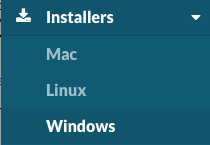
Navigate to Installers > Windows.
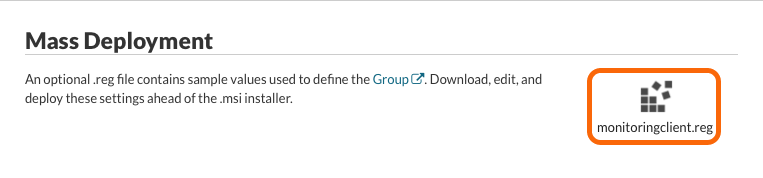
Under Mass Deployment, click on the monitoringclient.reg icon to download the sample registry file.
Client Group
The Watchman Monitoring Server’s Dashboard uses a Group setting to help sort an identify Computer Records.
The Group value is stored in a key called ClientGroup, and can be pre-set using this sample .reg file
[HKEY_LOCAL_MACHINE\SOFTWARE\MonitoringClient]
"ClientGroup"=""
[HKEY_LOCAL_MACHINE\SOFTWARE\Wow6432Node\MonitoringClient]
"ClientGroup"=""
Enter the desired Group value in between quotes for the 32 and 64 bit systems.
[HKEY_LOCAL_MACHINE\SOFTWARE\MonitoringClient]
"ClientGroup"="Pretendco"
[HKEY_LOCAL_MACHINE\SOFTWARE\Wow6432Node\MonitoringClient]
"ClientGroup"="Pretendco"
Tip
Good Group values might reference a company name, a department, or the surname of a computer’s owner.
Auto-Update
Watchman Monitoring Monitoring Client software ships with Auto-Update enabled. Auto-update can be disabled, and updates run manually.
[HKEY_LOCAL_MACHINE\SOFTWARE\MonitoringClient]
"AutoUpdateEnabled"="1"
[HKEY_LOCAL_MACHINE\SOFTWARE\Wow6432Node\MonitoringClient]
"AutoUpdateEnabled"="1"
Set AutoUpdateEnabled to 0 (Zero) to disable.
[HKEY_LOCAL_MACHINE\SOFTWARE\MonitoringClient]
"AutoUpdateEnabled"="0"
[HKEY_LOCAL_MACHINE\SOFTWARE\Wow6432Node\MonitoringClient]
"AutoUpdateEnabled"="0"
Deploying Registry Changes through Group Policy
You may also use a startup script policy for computer registry configuration or logon script policy for user registry configuration.
- Export or create your registry modify item to a .reg file,
- Create a new GPO and link it to a scope (site, domain or OU level not a Group)
- Set at Computer Configuration\Windows Settings\Script\Startup (for computer registry configuration)
- Or User Configuration\Windows Settings\Script\Logon
- Add the settings use regedit.exe call our .reg file (with the /s switch)
- Copy the .reg file to Logon folder (script>Add>Browse>Logon folder)
For more information please refer to following article: