Removing the Monitoring Client
Occasionally a Subscriber may want to remove the Monitoring Client from a monitored computer, such as if the Subscriber is no longer doing business with the user.
Remove the Monitoring Client remotely
Locate and open the client record in your Dashboard.
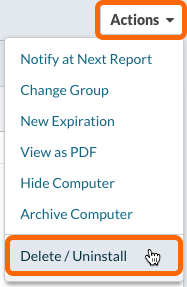
Click the Actions menu at the top right.
Choose Delete / Uninstall.
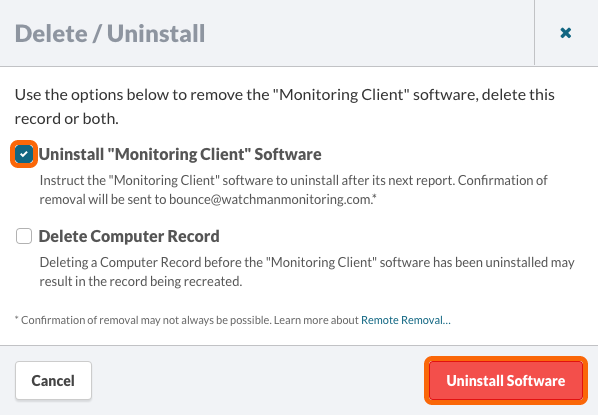
Select Uninstall “Monitoring Client” Software
Optionally, you can select Delete Computer Record to remove the computer record from your Dashboard.
Click Uninstall Software.
The client record will be hidden from the server view (or deleted), and no warning emails will be sent.
When the Monitoring Client next reports, the client will be instructed to uninstall.
If the client is still hidden at the time of removal, no report will be emailed. However, removal can be confirmed when searching for hidden clients.
Note
The default setting for the Monitoring Client is to automatically check for settings changes at the server. This setting must be checked for remote removal to work.
Remove the Monitoring Client using the PreferencePane
Mac
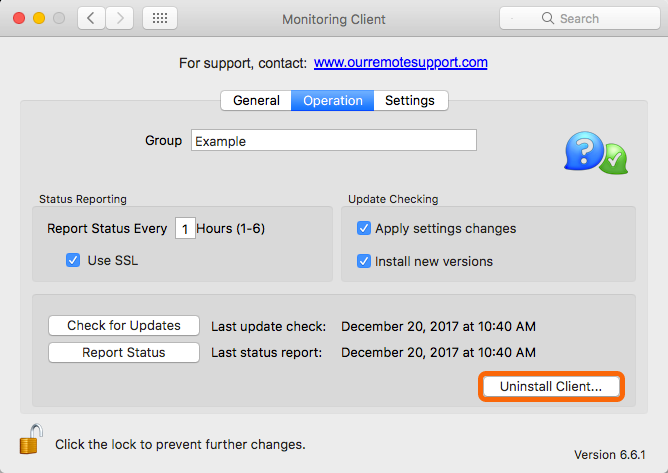
Open the Preference Pane. Select the Operation tab, and click the Uninstall Client… button.
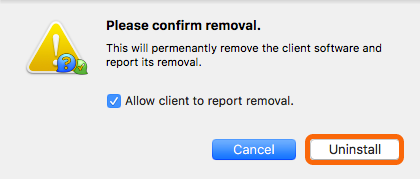
Click the Uninstall button on the confirmation sheet.
Optionally, Allow client to report removal can be deselected to keep the Monitoring Client from sending a removal confirmation to the server.
Windows
Open the Control Panel. Select the Operation tab, and click the Uninstall Client button.
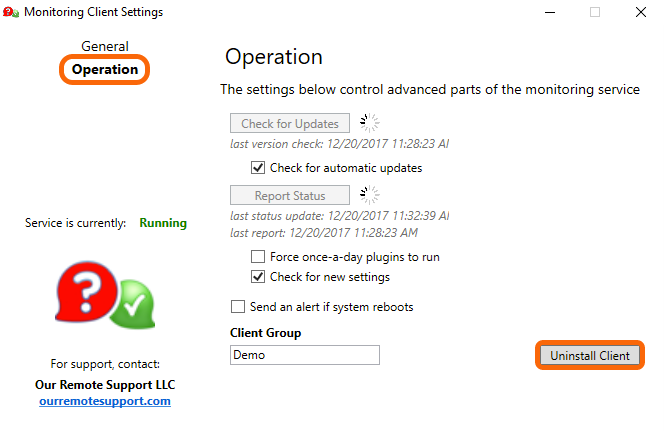
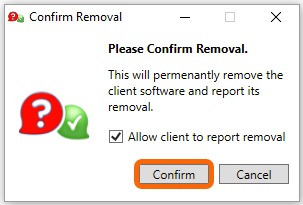
Click the Confirm button on the confirmation sheet.
Optionally, Allow client to report removal can be deselected to keep the Monitoring Client from sending a removal confirmation to the server.
Remove the Monitoring Client via Command Line
Mac
The following command will remove the client
sudo /Library/MonitoringClient/Utilities/RemoveClient -F
To prevent an email reporting the removal of the client use the following command
sudo /Library/MonitoringClient/Utilities/RemoveClient -FQ
Windows
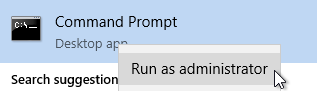
From a Command Prompt run as administrator, use the following command:
The following command will remove the client
"C:\Program Files (x86)\Monitoring Client\Uninstall.exe" /remote
To prevent an email reporting the removal of the client use the following command
"C:\Program Files (x86)\Monitoring Client\Uninstall.exe" /skipLastReport /remote
Linux
The agent can be manually removed using the following command:
sudo run-client -F --remove
Click to copy
Manual Removal
Mac
Unload the following launch agents and daemons:
# Stop services
sudo launchctl unload /Library/LaunchAgents/com.monitoringclient.cmhelpderd.plist
sudo launchctl unload /Library/LaunchDaemons/com.monitoringclient.*
sudo pkgutil --forget com.monitoringclient.pythonframework
Delete the following files, if present:
# Remove files
sudo rm -rf /Library/LaunchAgents/com.monitoringclient.cmhelpderd.plist
sudo rm -rf /Library/LaunchDaemons/com.monitoringclient.beacon.plist
sudo rm -rf /Library/LaunchDaemons/com.monitoringclient.client.plist
sudo rm -rf /Library/LaunchDaemons/com.monitoringclient.diskjournald.plist
sudo rm -rf /Library/LaunchDaemons/com.monitoringclient.updater.plist
sudo rm -rf /Library/LaunchDeamons/com.monitoringclient.diskjournald.plist
sudo rm -rf /Library/MonitoringClient/
sudo rm -rf /Library/PreferencePanes/MonitoringClient.prefPane
Warning
Manually removing the files may generate
launchdrelated error messages. They will after the computer is restarted.
Permalink: https://watchmanmonitoring.com/uninstall-monitoring-client