Time Machine Reporting
The Time Machine Plugin reports when a Time Machine backup has not been performed in the allotted time frame.
Reports
The Time Machine Plugin reports:
- Days allowed between Time Machine Backups
- Defined Destinations
- Destination Name
- Backup Path
- Latest Backup
- Status
- Back up while on battery power
- Notifies after old backups are deleted
- Time and drive location of most recent backup
Warning
Disabling Time Machine will result in a one-time warning email notification that Time Machine has been disabled.
Initial Reporting
Initial reporting of Time Machine status is delayed after initial startup or reboot allowing the Time Machine a chance to run. This delay is to reduce false alerts upon initial check in.
Adjusting the time frame for reports
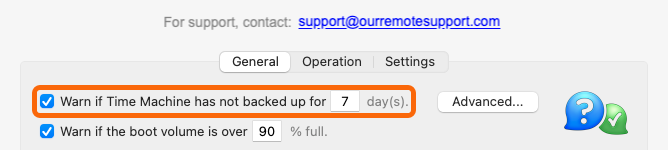
The time frame for Time Machine backup reports can be changed from the Monitoring Client’s Preference Pane. The default time frame for Time Machine to complete a backup is 7 days.
Additional Time Machine Functionality
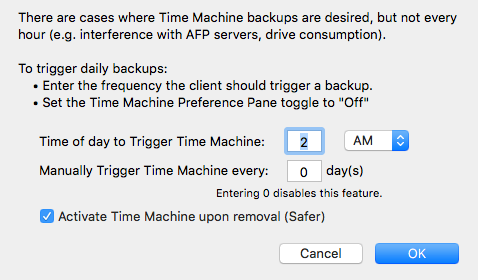
The Advanced button gives the Subscriber some additional options for using Time Machine. The Monitoring Client can automatically trigger Time Machine backups at a specified time daily or after a specified number of days.
To enable Time Machine backups that do not occur hourly:
- Within Time Machine, set up the backups as desired.
- Toggle Time Machine to Off.
- Within Watchman Monitoring PreferencePane, click the Advanced Button.
- Choose a time for backups to occur.
- Choose a time interval in days.
Related Articles:
Support for alternate Time Machine schedulers
Enable Time Machine to schedule automatic daily backups
Permalink: https://watchmanmonitoring.com/plugin-support/time-machine