About the Processes Monitoring Plugin
The Monitoring Client has the ability to determine if processes are running and will send an alert if they fail to respond. For priority processes, this ensures a certain application or process is running.
Adding a Process to Monitor
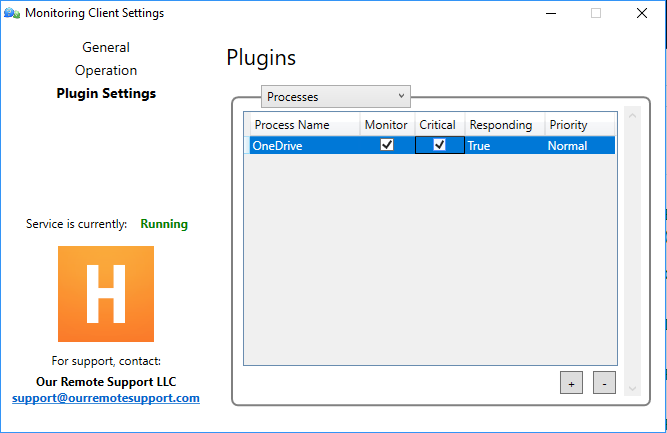
Open the Monitoring Client Control Panel, and click Plugin Settings.
From the drop-down, select Processes.
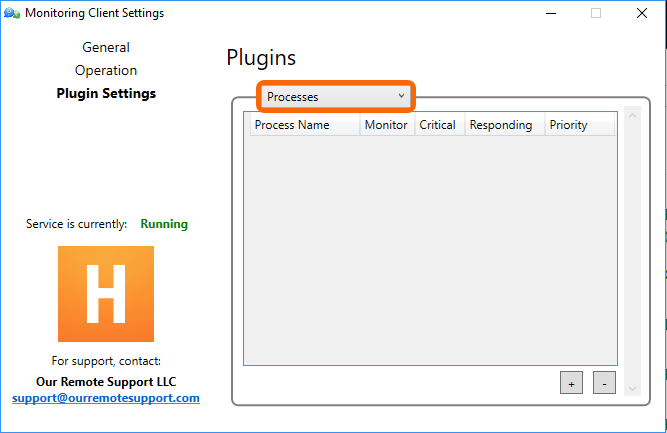
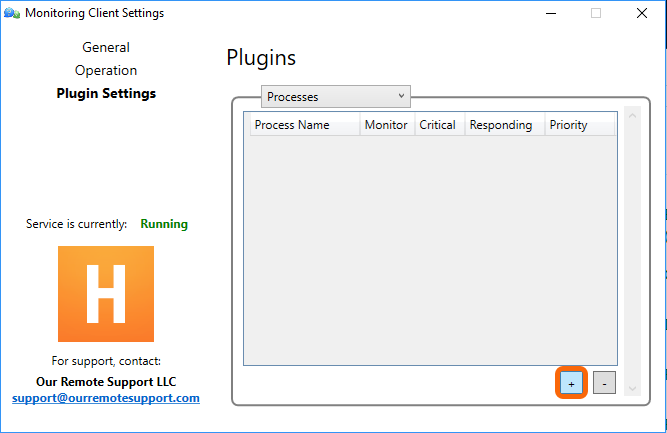
Click the + (plus) button, to add a process
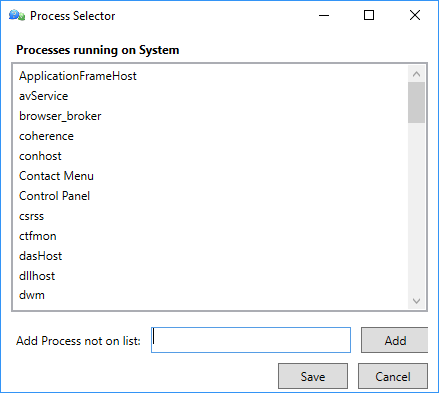
Select the desired process to monitor from the Process Selector dialog, and click Save.
Tip
If a Process is not in the list, you can add it manually by entering the process name in the Add Process not on list: field, and clicking Add. Then select that process, and click Save.
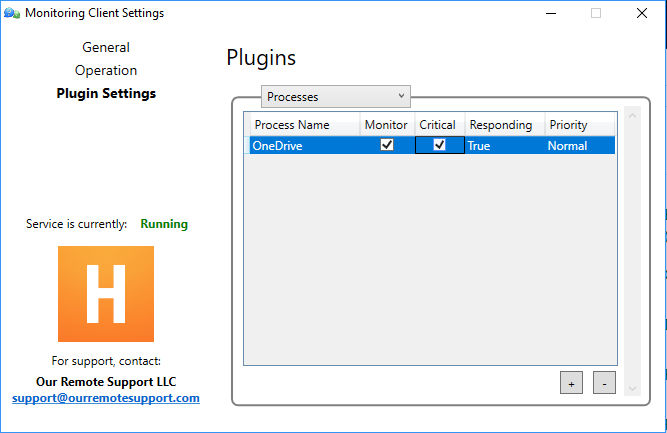
Monitored Processes will be displayed in the list.
Selecting the Critical checkbox enables alerts when a process stops.
Removing a Monitored Process
Monitored Processes will be displayed in the list. Unchecking Monitor will stop monitoring of a process.
Remove a process, by selecting the process in the list, and clicking the – (minus) button.
Reporting
When a process is stopped:
- If Critical is unchecked, the status will be reported to your dashboard, but no alert will be sent.
- If Critical is checked, the status will be reported to your dashboard, and a one-time alert will be sent.
If the process is missing and stopped, a one-time alert will be sent.
Permalink: https://watchmanmonitoring.com/process-monitoring