Helpful Terminal/Command Line options for the Monitoring Client (Windows)
Setting Watchman Monitoring Preferences from the Command Line is an efficient method when using deployment scripts and RMM platforms.
Notes on Editing Preferences from the Command Line
Important
All commands must be run in an elevated command prompt.
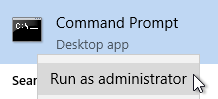
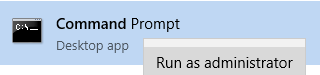
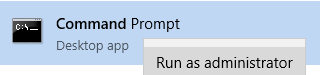
To open an elevated command prompt, locate Command Prompt, right-click and select Run as administrator.
Notes on calling RunClient using PowerShell
Important
All commands must be run in an elevated PowerShell.
Preface calling RunClient.exe with an & (ampersand) to run properly in PowerShell.
& "C:\Program Files (x86)\Monitoring Client\RunClient.exe" --update
To open an elevated PowerShell, locate Windows PowerShell, right-click and select Run as administrator.

Client Operations
Reporting
It is preferable to change settings through the Monitoring Client Control Panel. If you need to force a report through the command line then you can use the following commands.
Force the Monitoring Client to report now:
For a 64 bit OS
REG ADD HKLM\SOFTWARE\WOW6432Node\MonitoringClient /v ForceRun /t REG_SZ /f /d "1"
For a 32 bit OS
REG ADD HKLM\SOFTWARE\MonitoringClient /v ForceRun /t REG_SZ /f /d "1"
Updating
Updates are handled by the RunClient.exe executable. Watchman Monitoring provides three flags for updating from the command line:
--updateopens an update interface to check for an available update.--update --quietautomatically forces an available update.--update --updatepath="[path-to-Wys-file]"opens an update interface to update from a local folder containing update files.
Warning
RunClient.exemust be run as an administrator. You will not be prompted to elevate the access level.
To open the Control Panel from the command line, and check for an update, execute
"C:\Program Files (x86)\Monitoring Client\RunClient.exe" --update
Force the Monitoring Client to check for software updates:
To manually update from the command line regardless of the AutoUpdate setting, execute
"C:\Program Files (x86)\Monitoring Client\RunClient.exe" --update --quiet
Force the Monitoring Client to update from local files:
To manually update from the command line regardless of the AutoUpdate setting from local update files, execute
"C:\Program Files (x86)\Monitoring Client\RunClient.exe" --update --updatepath="[path-to-Wys-file]"
Note
The provided
.wysand.wyufiles must be located in the same folder.
Force the Monitoring Client to check for software updates [deprecated]:
Important
update.exeis deprecated as of Version 1.5.1.1. Please useRunClient.exe --updateas detailed above.
To manually update from the command line, execute
"c:\Program Files (x86)\Monitoring Client\update.exe" /fromservice
Warning
The
update.execommand, must be run as an administrator. You will not be prompted to elevate the access level.
Note
Calling
update.exedirectly does not update the registry’s last update check value. Therefore the control panel timestamp will be off.
Disable Auto-Update:
For a 64 bit OS
REG ADD HKLM\SOFTWARE\WOW6432Node\MonitoringClient /v AutoUpdateEnabled /t REG_SZ /f /d "0"
For a 32 bit OS
REG ADD HKLM\SOFTWARE\MonitoringClient /v AutoUpdateEnabled /t REG_SZ /f /d "0"
Adjust Reporting Interval
Adjust the time interval between one (1) and six (6) hours that the client reports its status.
Replace the 60 below with a number less than or equal to 360.
For a 64 bit OS
REG ADD HKLM\SOFTWARE\WOW6432Node\MonitoringClient /v ReportInterval /t REG_SZ /f /d "60"
For a 32 bit OS
REG ADD HKLM\SOFTWARE\MonitoringClient /v ReportInterval /t REG_SZ /f /d "60"
Removal
Remove the Monitoring Client from the computer:
The following command will remove the client
C:\Program Files (x86)\Monitoring Client\Uninstall.exe" /remote
To prevent an email reporting the removal of the client use the following command
C:\Program Files (x86)\Monitoring Client\Uninstall.exe" /skipLastReport /remote
Group Setting
Change the Group:
For a 64 bit OS
REG ADD HKLM\SOFTWARE\WOW6432Node\MonitoringClient /v ClientGroup /t REG_SZ /f /d "GROUP_NAME"
For a 32 bit OS
REG ADD HKLM\SOFTWARE\MonitoringClient /v ClientGroup /t REG_SZ /f /d "GROUP_NAME"
Warning
Replace GROUP_NAME with the desired Group name.
List Plugins
A list of plugins with status, slug, settings location, and UUID can be obtained using --list-plugins.
C:\Program Files (x86)\Monitoring Client\RunClient.exe --list-plugins
Disable/Enable a Plugin with RunClient:
Plugins can be Disabled/Enabled using the appropriate --disable/--enable flag when calling RunClient.exe with the --plugin [plugin_name] flag.
C:\Program Files (x86)\Monitoring Client\RunClient.exe --disable --plugin [plugin_name]
C:\Program Files (x86)\Monitoring Client\RunClient.exe --enable --plugin [plugin_name]
Locate the actual plugin name in /Library/MonitoringClient/Plugins
As an example, to disable root capacity:
C:\Program Files (x86)\Monitoring Client\RunClient.exe --disable --plugin check_root_capacity
Plugin Settings
Reboot Notifications
Enable reboot notifications:
For a 64 bit OS
REG ADD HKLM\SOFTWARE\WOW6432Node\MonitoringClient\Plugins\RebootNotice /v Enabled /t REG_SZ /f /d 1
For a 32 bit OS
REG ADD HKLM\SOFTWARE\MonitoringClient\Plugins\RebootNotice /v Enabled /t REG_SZ /f /d 1
Disable reboot notifications:
For a 64 bit OS, edit 90 to an integer percentage threshold between 1 and 99.
REG ADD HKLM\SOFTWARE\WOW6432Node\MonitoringClient\Plugins\volumes /v SystemDrives /f /d [{\"Label\":\"C:\\\\\",\"Monitored\":true,\"ThresholdInt\":90,\"ThresholdString\":\"90%\",\"AlertIfMissing\":false,\"Description\":\"\",\"BitlockerEncrypted\":false,\"WarnIfUnlocked\":false}]
For a 32 bit OS, edit 90 to an integer percentage threshold between 1 and 99.
REG ADD HKLM\SOFTWARE\MonitoringClient\Plugins\volumes /v SystemDrives /f /d [{\"Label\":\"C:\\\\\",\"Monitored\":true,\"ThresholdInt\":90,\"ThresholdString\":\"90%\",\"AlertIfMissing\":false,\"Description\":\"\",\"BitlockerEncrypted\":false,\"WarnIfUnlocked\":false}]
Set Root Capacity Threshold:
For a 64 bit OS, replace 90 with percentage threshold between 1 and 99.
REG ADD HKLM\SOFTWARE\WOW6432Node\MonitoringClient\Plugins\volumes /v SystemDrives /f /d [{\"Label\":\"C:\\\\\",\"Monitored\":true,\"ThresholdInt\":90,\"ThresholdString\":\"90%\",\"AlertIfMissing\":false,\"Description\":\"\",\"BitlockerEncrypted\":false,\"WarnIfUnlocked\":false}]
For a 32 bit OS, replace 90 with percentage threshold between 1 and 99.
REG ADD HKLM\SOFTWARE\MonitoringClient\Plugins\volumes /v SystemDrives /f /d [{\"Label\":\"C:\\\\\",\"Monitored\":true,\"ThresholdInt\":90,\"ThresholdString\":\"90%\",\"AlertIfMissing\":false,\"Description\":\"\",\"BitlockerEncrypted\":false,\"WarnIfUnlocked\":false}]
Process Monitoring
Replace Process1 and Process2 with process names, excluding path.
For a 64 bit OS
REG ADD HKLM\SOFTWARE\WOW6432Node\MonitoringClient\Plugins\processes /t REG_SZ /f /d "[{\"Name\":\"Process1\",\"Monitor\":true,\"Critical\":true,\"Reported\":false},{\"Name\":\"Process2\",\"Monitor\":true,\"Critical\":true,\"Reported\":false}]"
For a 32 bit OS
REG ADD HKLM\SOFTWARE\MonitoringClient\Plugins\processes /t REG_SZ /f /d "[{\"Name\":\"Process1\",\"Monitor\":true,\"Critical\":true,\"Reported\":false},{\"Name\":\"Process2\",\"Monitor\":true,\"Critical\":true,\"Reported\":false}]"
Note
To monitor a single process, remove the second
,{\"Name\":\"Process2\",\"Monitor\":true,\"Critical\":true,\"Reported\":false}from the command. Add the above before the]to add an additional process to monitor.
Permalink: https://watchmanmonitoring.com/windows-command-line