ConnectWise Control (ScreenConnect) Integration
ConnectWise Control allows control and access of an unattended computer or server. The following steps will help you configure Watchman Monitoring to provide links for ConnectWise Control for unattended access.
Tip
Watchman Monitoring’s ConnectWise Control integration allows for multiple instances, at the same time, allowing for transition from a self-hosted solution to their cloud offering.
Setup

Navigate to Integrations > ScreenConnect

Slide the switch to On to enable the ConnectWise Control Integration.
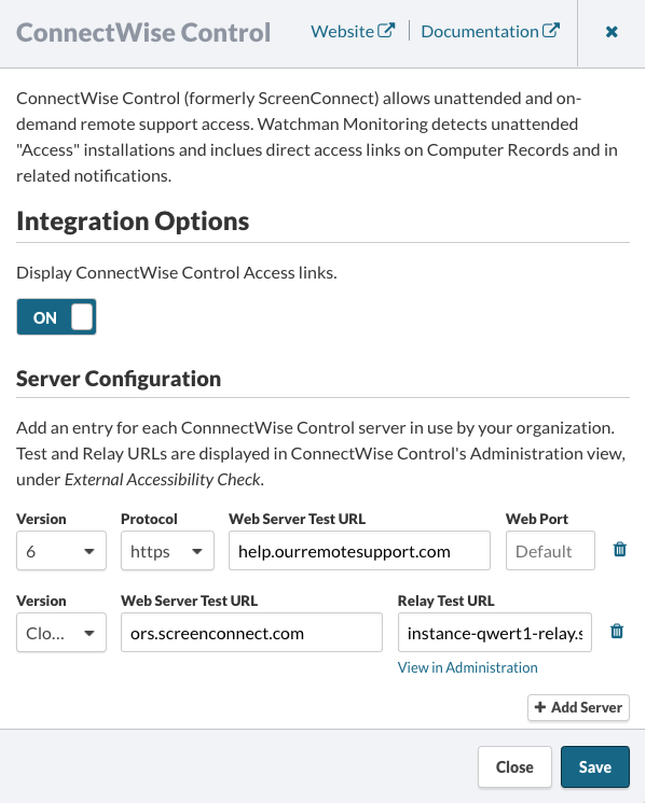
Click + Add Server.
Server Version
- Select the Version of ConnectWise Control.
- Select the Protocol (https or http).
- Enter your ConnectWise Control Server FQDN or IP Address.
- If you are using an alternate port, enter the Port number.

Cloud Version
- Select the Cloud Version.
- Enter your ConnectWise Control Web Server FQDN or IP Address.
- Enter your Relay Test URL

Dashboard Integration
If the Monitoring Client detects ConnectWise Control is installed on the Computer, ConnectWise Control URLs will be displayed on the Dashboard and in emails for one-click access to your ConnectWise Control web interface.
Hosted
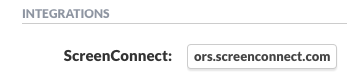
When ScreenConnect is hosted, the Integration shortcuts will contain the hosted FQDN.

Cloud
When ScreenConnect is using the Cloud option, the Integration shortcuts will contain the hosten FQDN.
Permalink: https://watchmanmonitoring.com/connectwise-control