Zendesk: Update Ticket Status via Tags
Once an initial ticket for an issue has been created, Watchman Monitoring will continue to update the status of the ticket by applying a status tag. These tags can be used to curate custom views in your Zendesk or perform various actions. This article will review the tags and creating a custom view to make for quicker review of potentially resolved issues.
Ticket Status Tags
When a ticket is created from an issue by Watchman Monitoring, a tag of either wm_status_warning or wm_status_informational will be added to denote that the issue was a warning state or an information state for the plugin in. These tags could be used as part of a New Ticket trigger to further categorize and prioritize a newly generated ticket.
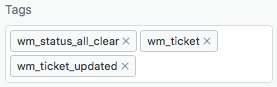
If an issue happens to clear upon subsequent check-in, a tag of wm_status_all_clear will be added to the ticket.
Note
Status tags include:
wm_status_warning
wm_status_all_clear
wm_status_informational
wm_ticket_updated
Warning
Tags are only added and are NOT removed. It is possible to have a
wm_status_all_cleartag on an open issue in a situation where a plugin might oscillate its status from an all clear state back to a warning state. (e.g. root capacity).
Create a Potentially Resolved View
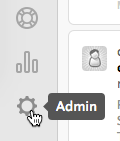
Click on the sprocket in the lower left corner.
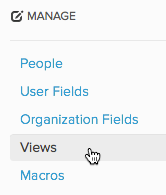
Under MANAGE click on Views
In the Upper right corner, click on add view.

Build Your View to look like this:
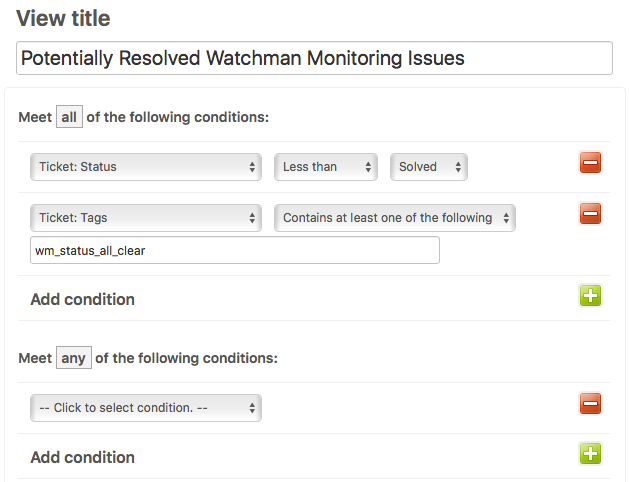
Click Create View

Tip
For more accurate status reporting, the
wm_ticket_updatedtag should be removed via macro or trigger, once acted upon.
Permalink: https://watchmanmonitoring.com/ticket-status-tags