Integration with Addigy
The Addigy agent is automatically detected by the Monitoring Client. Watchman Monitoring provides an Addigy link to the related computer record automatically on the Watchman Monitoring computer record, and in emails or tickets.
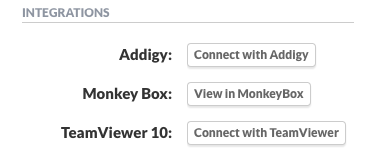
Setup
Navigate to Integrations > Addigy


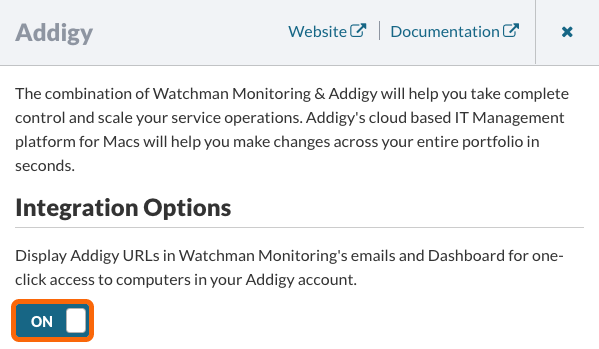
Enable Addigy
By default, Addigy is enabled. Slide the switch to On to enable the Addigy Integration.
If the Monitoring Client detects Addigy is installed on the Computer, an Addigy button will be displayed on the Dashboard under Integrations and in emails for one-click access to your Addigy account.
Generate API Key
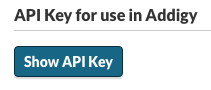
Click the Show API Key button to generate an API Key for use in Addigy.
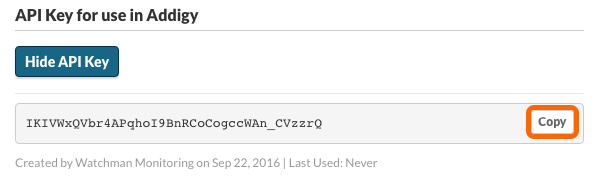
Click the Copy button to copy the API key into your clipboard.
Click the Addigy Integrations Page to enable the integration in Addigy.
Click Save to enable the Addigy Integration.

Enabling the Watchman Monitoring Integration in Addigy
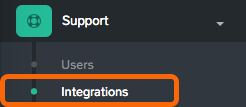
Navigate to the Addigy Integrations Page.
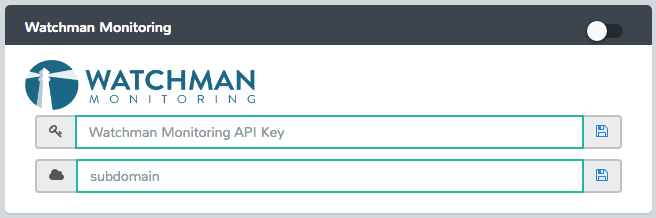
Paste your Watchman Monitoring API Key in the Watchman Monitoring API Key field and enter your subdomain.
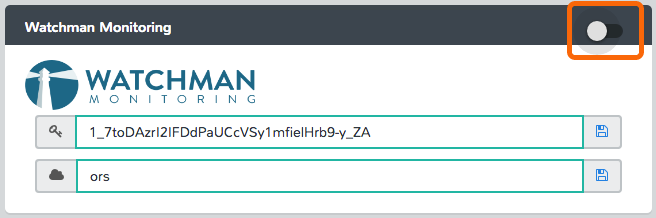
Click the slider to activate the integration.
Warning
Integrations in Addigy must be added from Addigy accounts with the Owner role. The API Key and subdomain fields will not be displayed for Admin accounts.
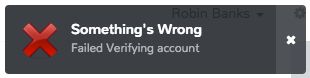
If your Watchman Monitoring credentials are invalid, you will see a warning that Addigy Failed Verifying account. Verify your API key and subdomain.
Policies in Addigy
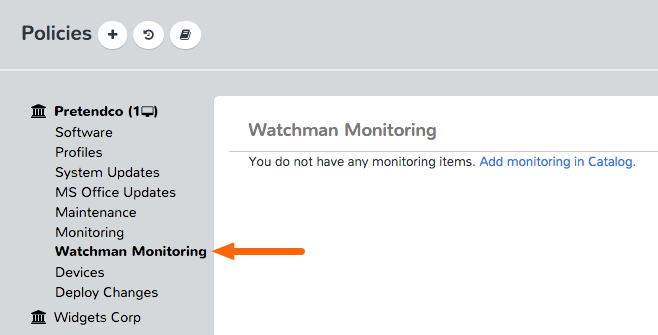
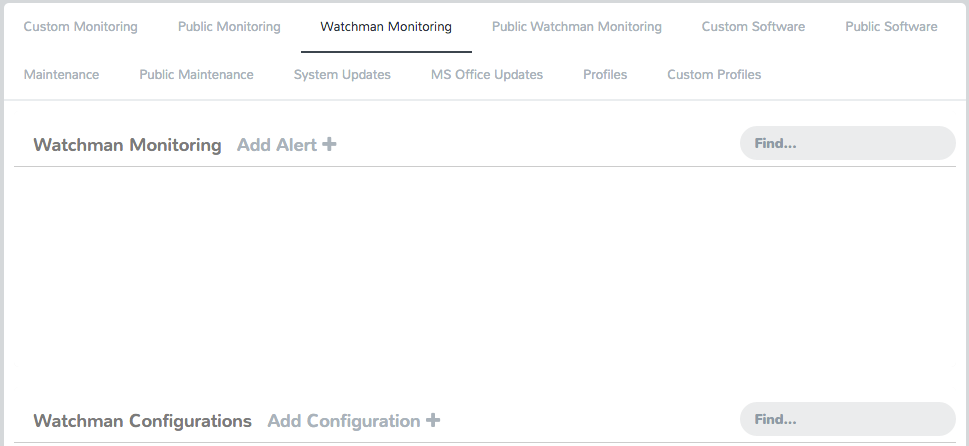
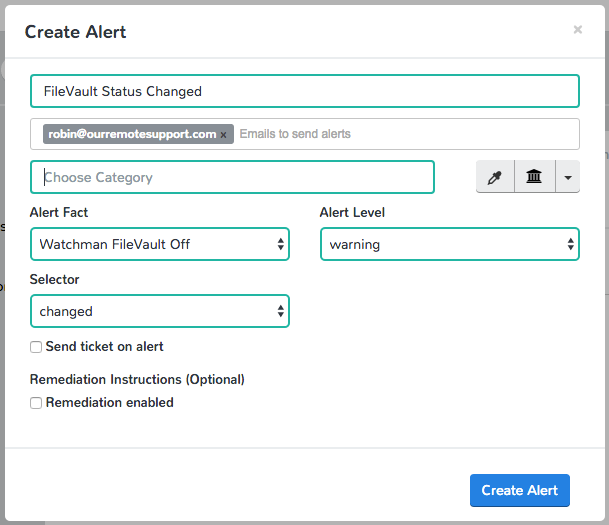
Alerts and Configurations can be configured in the Addigy Policies. You can create alerts based on Watchman Monitoring criteria to provide additional alerts from Computers assigned to these Policies.
Contact Menu
Addigy MacManage App
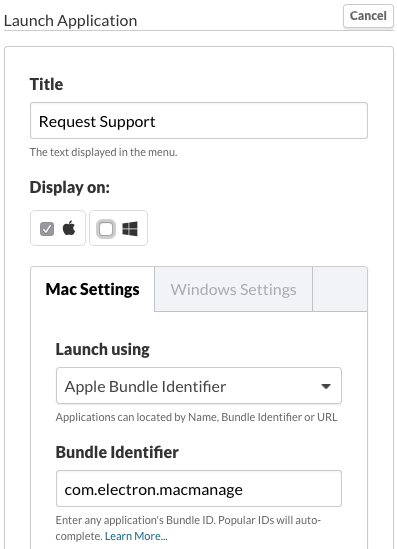
You can add the Addigy MacManage App to your Contact Menu with the following Bundle ID.
- Bundle ID: com.electron.macmanage
Learn more about the Contact Menu and Contact Menu Tips & Tricks.
Related Articles
Permalink: https://watchmanmonitoring.com/addigy-integration