RepairShopr: Ticketing and Asset Tracking
The RepairShopr integration maps your Watchman Monitoring Groups into RepairShopr Customers, and creates Tickets from alerts. This article details the integration along with initial configuration in your Watchman Monitoring Dashboard and usage from within RepairShopr.
Warning
New notifications will be created in RepairShopr for all existing issues. This is normal, and will stabilize as all existing alerts are assigned a RepairShopr ticket.
Benefits of Integrating Watchman Monitoring & RepairShopr
Watchman Monitoring Offers
- A light-weight, read-only agent
- Powerful error detection
- Expiration Tracking
- Custom Branding
- Customizable Contact Menu
RepairShopr Offers
- Helpdesk/Ticketing
- Asset Tracking
- Online Payments
- Contracts and SLAs
- Recurring Billing
- CRM, POS, and more..
What the integration does
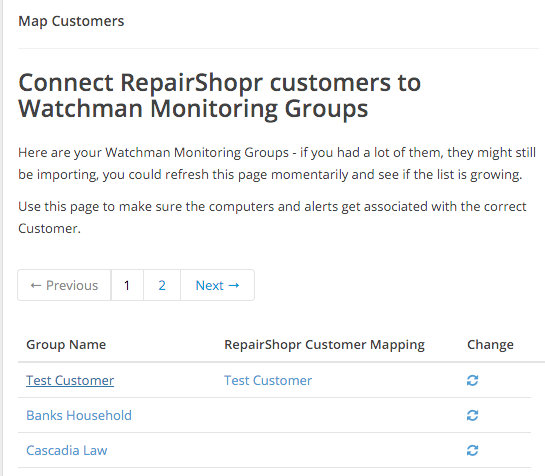
- Maps Watchman Monitoring “Groups” to RepairShopr “Customers”
- Feeds error reports into RepairShopr for one-click Ticket creation
- Automatically creates Assets from monitored computers
- Continually updates assets with machine names, serial numbers, etc
Warning
Enabling the RepairShopr integration disables Record Creation (New Computer) email notifications, as these notifications are handled within RepairShopr.
Setup
Navigate to Integrations, and select RepairShopr.

Watchman Monitoring Setup
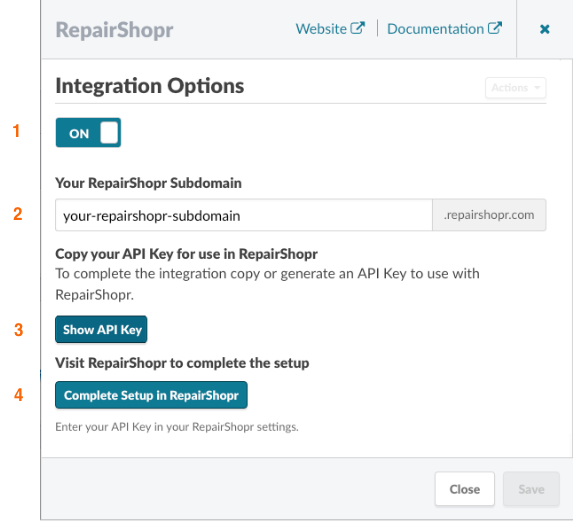
- Turn the integration On
- Enter Your RepairShopr Subdomain
- Generate and copy your API Key
- Click Complete Setup in RepairShopr
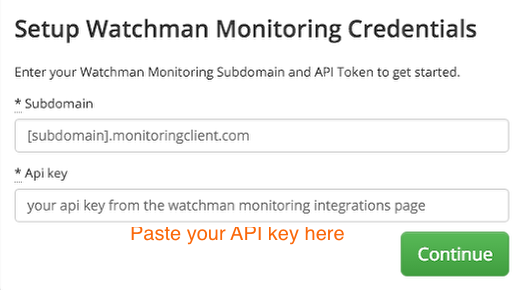
Add Watchman Monitoring credentials
Map Groups to RepairShopr Customers
Using the RepairShopr integration
Manage incoming alerts
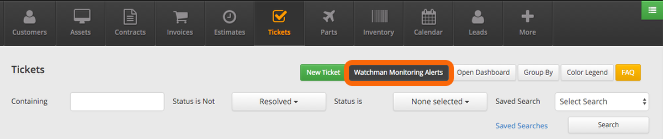
You can manage incoming alerts by navigating to Tickets in your RepairShopr dashboard, and clicking on the Watchman Monitoring Alerts button.
Tip
Note the new Watchman Monitoring Alerts button on your RepairShopr tickets Page.
RMM Alerts Page
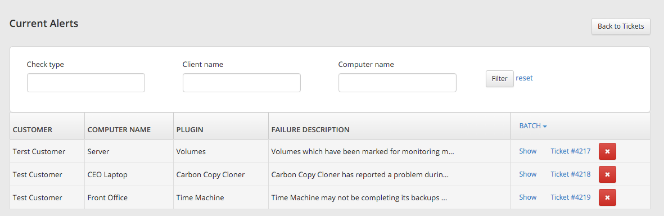
Watchman Monitoring notifications in RepairShopr
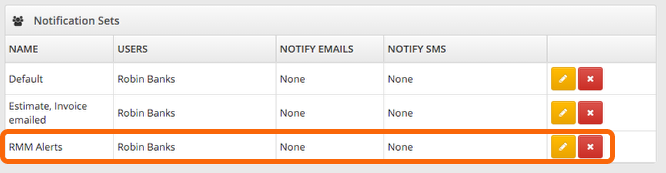
Once the integration is complete, you will be able to configure notifications for RMM Alerts in the RepairShopr Notification Center
Using the Watchman Monitoring Integration
Viewing RepairShopr Tickets from Watchman Monitoring Dashboard
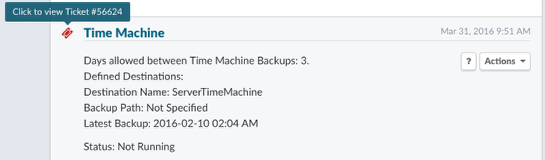
Clicking the ticket icon will take you to RepairShopr ticket for this computer. When the ticket icon is visible next to a plugin, that plugin is muted by RepairShopr. Hovering over the ticket icon will display the RepairShopr ticket number.
FAQ
How do I create a RepairShopr ticket from a Watchman Monitoring notification?
RepairShopr shows Watchman Monitoring notifications as alerts, and you can create a ticket based off of that alert on the RMM alerts Page. Click Create Ticket next to the alert to turn that notification into a ticket.
Can alerts be merged?
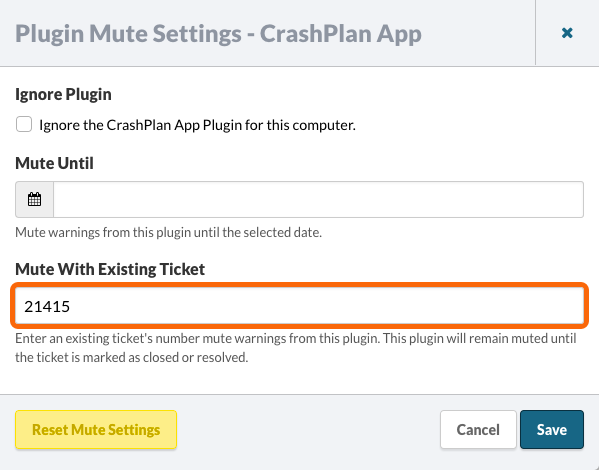
A single RepairShopr ticket number can be used to mute multiple warnings by entering the ticket number in the muting interface.
From the Actions menu, select All Muting Options…
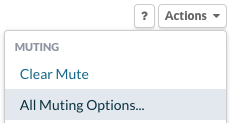
The Plugin Mute Settings will slide out. Enter the related ticket number in the Mute With Existing Ticket field.
Permalink: https://watchmanmonitoring.com/repairshopr-integration