Zendesk: Working with Group Tags
When Watchman Monitoring creates an issue ticket, a tag for the computer group is added. Group tags can be used for automation, organizing views, and service level agreements (SLAs). This article covers adding a group tag as criteria in Zendesk.
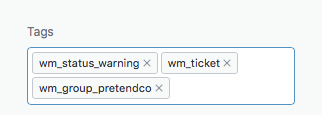
When Watchman Monitoring generates a ticket in Zendesk, tags including Status, Plugin Slug, and Group are automatically applied. Using the Group Tag allows for simplified matching for criteria when building automations, triggers, views and service level agreements.
In general these tags can be utilized by selecting Ticket: Tags with Contains at least one of the following and finally entering or selecting wm_group_group_name.
Warning
Changing a group name will change the group tag that is applied to a ticket. Existing tickets will not have the new group tag applied.
Automations

Automations take action to modify ticket properties at a specified time after a ticket is updated. Narrow the scope of the automation by adding a condition to include or exclude a group tag.
Triggers

Triggers take action when a ticket is created or updated. Narrow the functionality by adding a condition to include or exclude a group tag.
Ticket Views


Organizing Views of Watchman Monitoring tickets is simplified by adding a condition to include or exclude a specific group or groups.
Permalink: https://watchmanmonitoring.com/zendesk-group-tags