Zendesk - Configuring the Notifications User
Customizing the notifications user from Watchman Monitoring in your Zendesk allows messages and alerts from Watchman Monitoring to represent your branding when forwarding alerts to users. The following instructions will assist in locating the notifications user in your Zendesk and modify its display.
Configuring the Notifications User
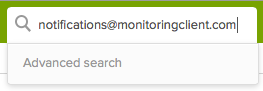
Click on the Search icon in the upper left of your Zendesk Administration Panel and search for [email protected]

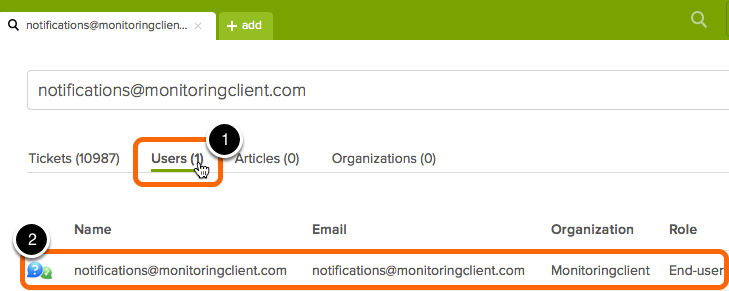
Click on Users then Click the [email protected] User.
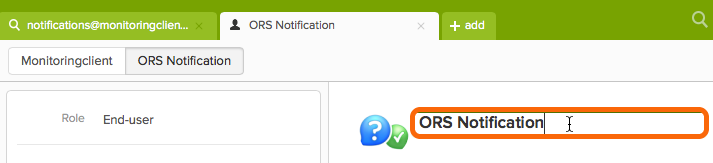
You can click in the [email protected] field and change this to a friendly name.
Click on the Organization.
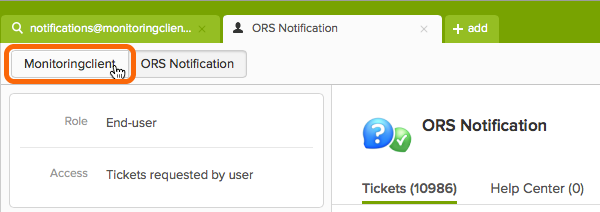
Customize the Orginization to your Branding.
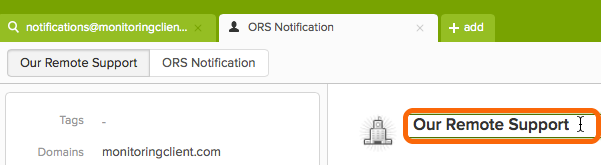
Now messages and alerts from Watchman Monitoring will represent your branding when forwarding alerts to users.
Related Articles
Permalink: https://watchmanmonitoring.com/zendesk-notifications-user