ConnectWise: Ticketing and Asset Tracking Integration
With our integration into ConnectWise - warnings become tickets in your ConnectWise account. Each warning is automatically muted until its related ticket is resolved. Watchman Monitoring allows you to map Groups to ConnectWise Companies for asset tracking.
Tip
Configuration of the ConnectWise integration with Watchman Monitoring can be a time-consuming process. You will want to have Service Boards, Closed Ticket Status(es), Companies, Configuration Types, and Configurations in ConnectWise.
The following instructions will help you configure the ConnectWise integration.
Overview of the ConnectWise Integration
- Maps Watchman Monitoring “Groups” to ConnectWise “Customers”
- Link Watchman Monitoring Computer Records to ConnectWise Configurations.
- Generate Configuration Items in ConnectWise based on Computer Records. (Not automatic, Configuration Item data will not sync past creation.)
- Create ConnectWise tickets based on Watchman Monitoring Alerts and Warnings.
- Tickets created by Watchman Monitoring will always reference the mapped Company. You may enforce the mapping to Configuration Items as well during the integration’s setup.
Setup
ConnectWise Setup
You will first need to Create a ConnectWise API key. Once you have created a set of API keys, you will need these for the remaining setup procedure.
Tip
The name of the API user will be visible to your users. We recommend naming the API user to match your company brand. (e.g. “Our Alerting System”)
Note
Visit this URL for ConnectWise’s API Documentation: ConnectWise U.
Watchman Monitoring Setup
Navigate to the ConnectWise integration.
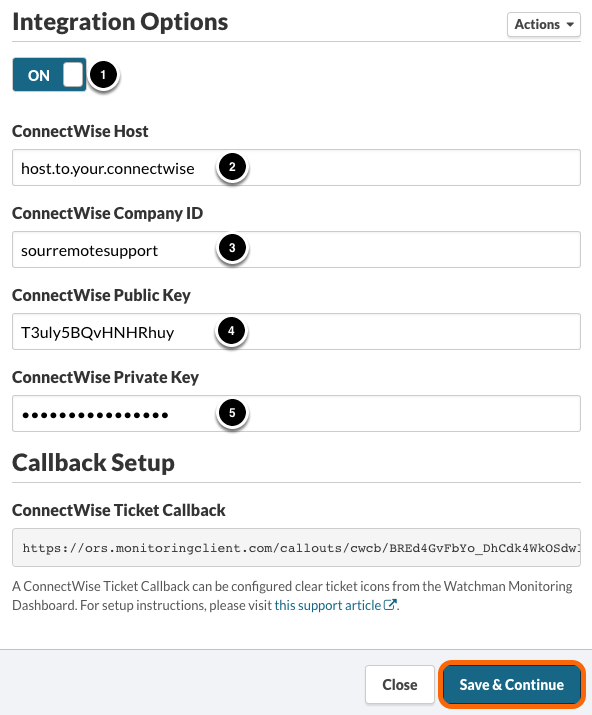
In the slide-out modal, do the following:
- Turn the integration on
- Enter your ConnectWise Host (without the
https://) - Enter your ConnectWise Company ID
- Enter the ConnectWise Public Key (generated in the steps above).
- Enter the ConnectWise Private Key (generated in the steps above).
Click Save & Continue.
Step 1
Click the Start button to begin synchronizing and updating Settings, Companies, and Configurations from ConnectWise.
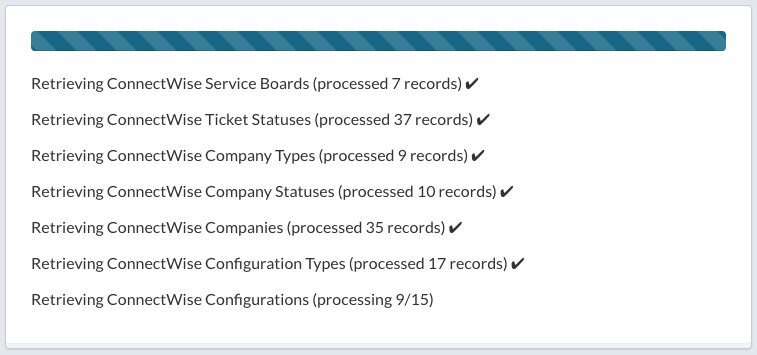
You will be shown a dialog as Watchman Monitoring syncs with your ConnectWise.
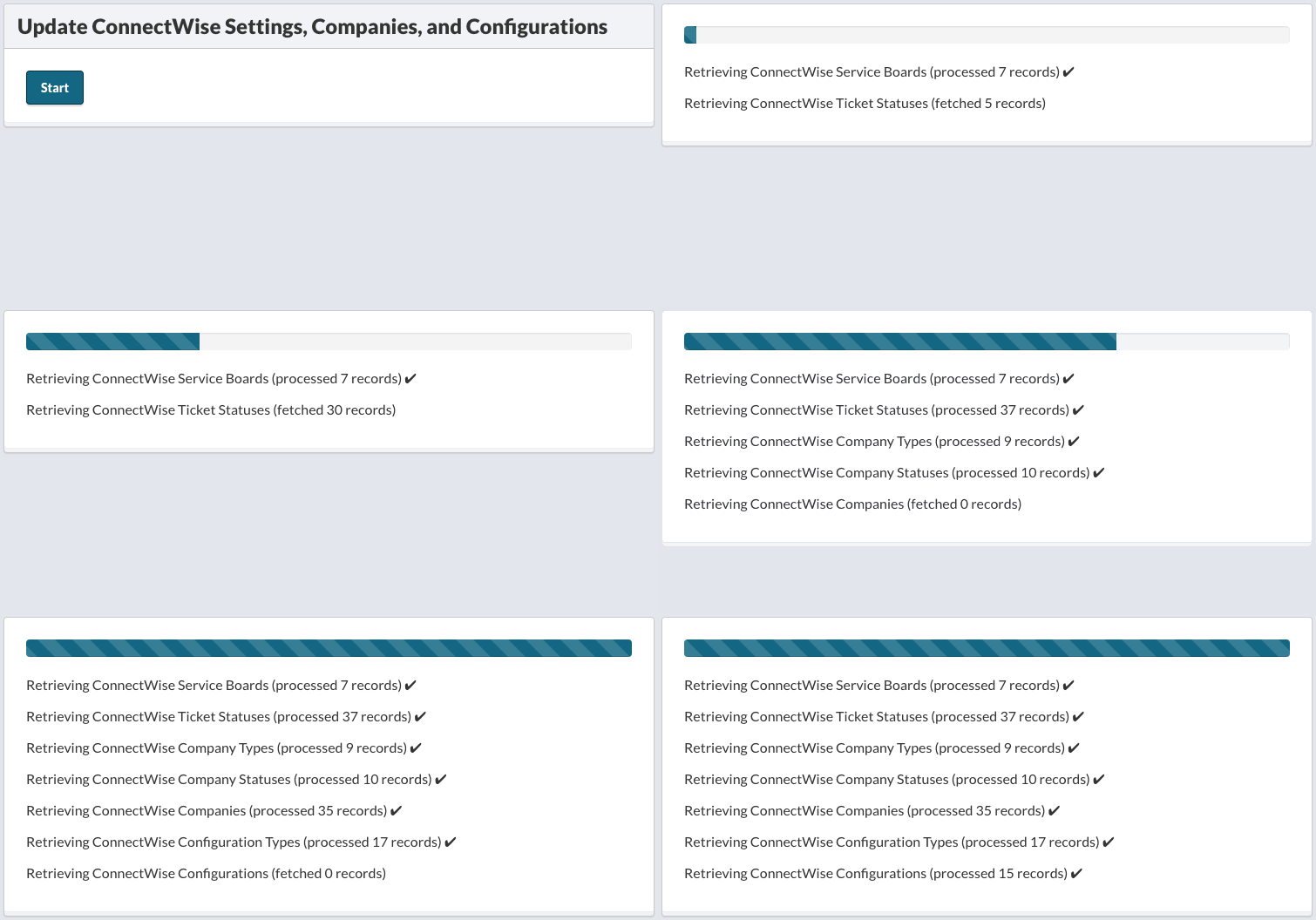
You will be shown a dialog as Watchman Monitoring syncs with your ConnectWise.
Step 2
Next, select the Closed Ticket Status Types or status, that when a ticket is set, Watchman Monitoring can determine the ticket is closed.
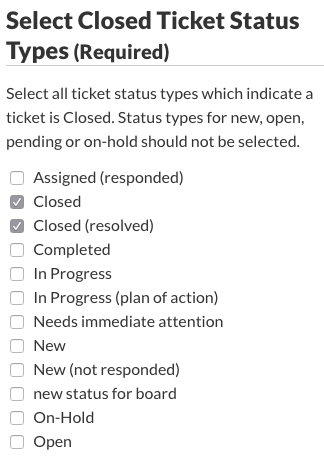
Select the Relevant Configuration Types such as laptops, desktops, and servers. These selected configuration types will be available when mapping Computer Records when creating tickets.
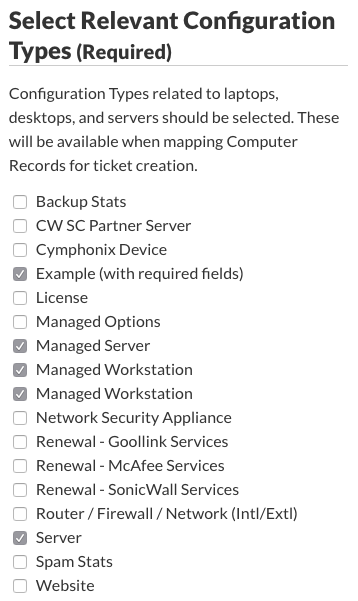
Click Save & Continue.
Step 3
Map Groups from Watchman Monitoring to your ConnectWise Companies.
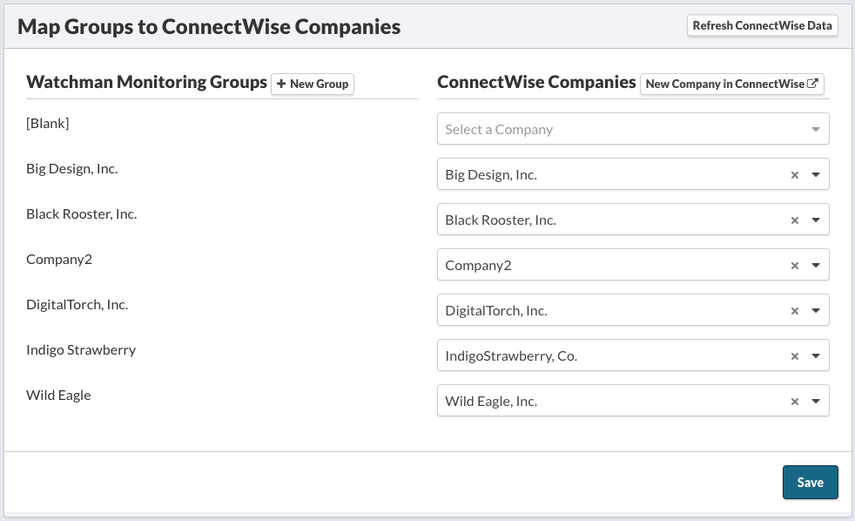
Watchman Monitoring will suggest a ConnectWise Company that matches the Watchman Monitoring group name.
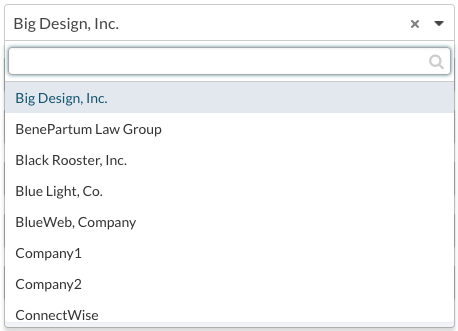
Select your ConnectWise Service Board where your Service Tickets will be sent by default.
Step 4
Select the default Service Board for tickets. All Service Boards must have default Status and default Team Assignment configured in ConnectWise.
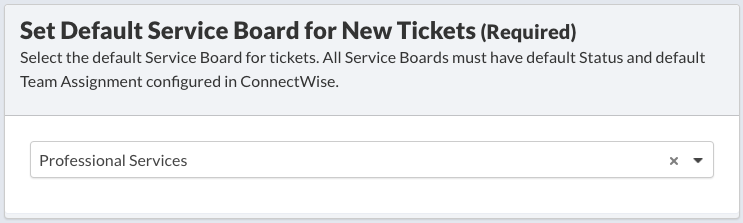
Important
All Service Boards must have a default Status and must have a default Team Assignment configured in ConnectWise.
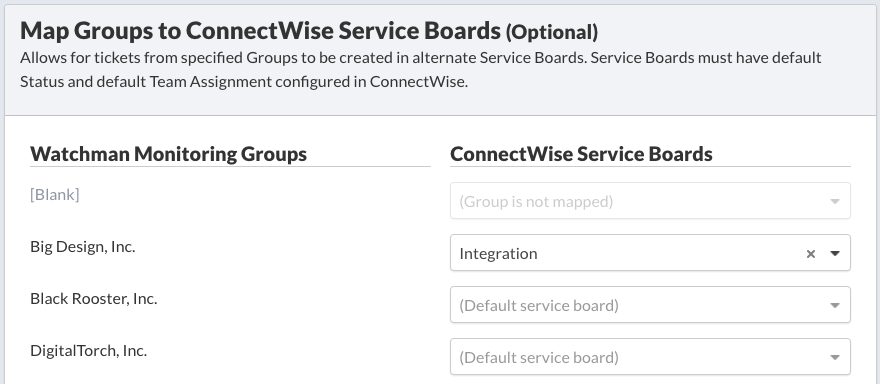
You can optionally map Watchman Monitoring Groups to ConnectWise Service Boards. This mapping allows for tickets from specified Groups to be created in alternate Service Boards. Service Boards must have default Status and default Team Assignment configured in ConnectWise.
Step 5
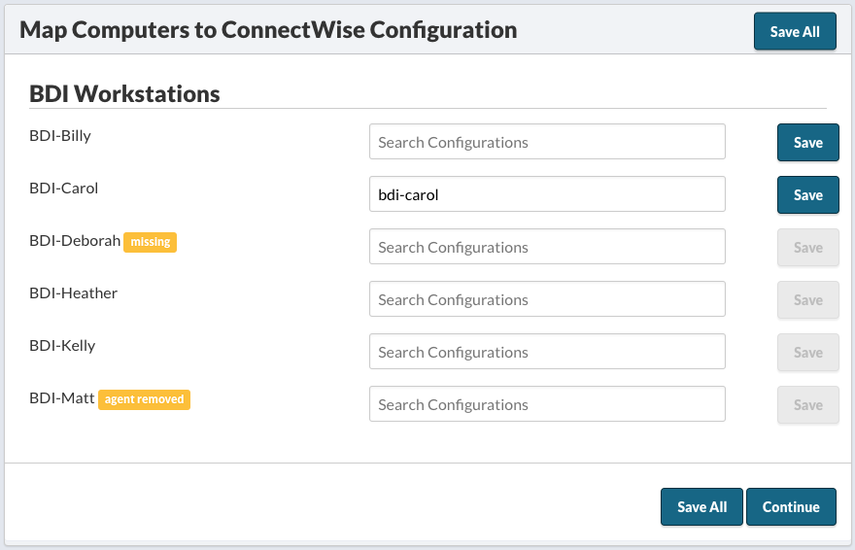
Map Computers to ConnectWise Configurations by entering a configuration name in the Search Configurations field next to each computer. You will be presented with a list of configurations to select. Click Save next to each computer, or click Save All to save all.
Warning
If a computer is not mapped to a ConnectWise Configuration, the Administrative email address (defined in the next step) will receive an email indicating that further action must be taken to create a ticket in ConnectWise. Once the mapping or required action is completed, Watchman Monitoring will create the ticket on the next check-in.
Creating a New Configuration
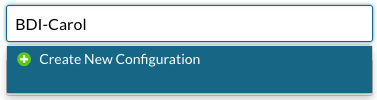
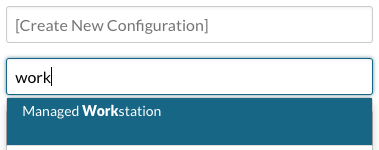
If a Configuration for the computer does not exist in your ConnectWise, you can select the Create New Configuration option.
An additional Search Configuration Types field will be displayed below.
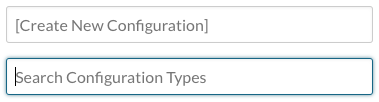
Enter your search for a Configuration Type, and select the Configuration Type from the list.
Warning
Configuration Types that have required fields are not eligible for use by Watchman Monitoring for creation, however, existing Configurations with required fields may be mapped to Computer Records.
Click Save to save the new configuration.
Step 6
Ticket Creation settings allow you to be notified of incidences where an action is required for Watchman Monitoring to create tickets in your ConnectWise, allow Watchman Monitoring to create tickets for computers without Configuration Items, and/or send an additional warning email when tickets are created.
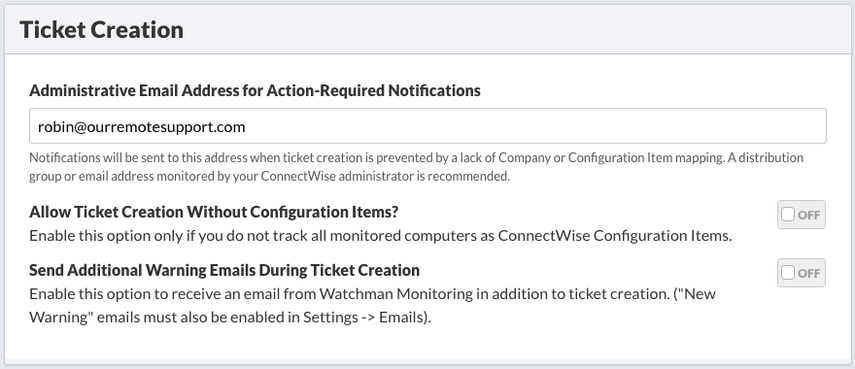
The Administrative Email Address for Action-Required Notifications should be an email address that does not create tickets in your ConnectWise. These notifications will include notifications for lack of Company or Configuration Item mapping.
Enable the Allow Ticket Creation Without Configuration Items option only if you do not track all monitored computers as ConnectWise Configuration Items. Watchman Monitoring Groups must be mapped to ConnectWise Companies to enable this option.
Enable the Send Additional Warning Emails During Ticket Creation option to receive an email from Watchman Monitoring in addition to ticket creation in ConnectWise. You will need to enable “New Warning” emails in Settings -> Emails.
Ticket Updates
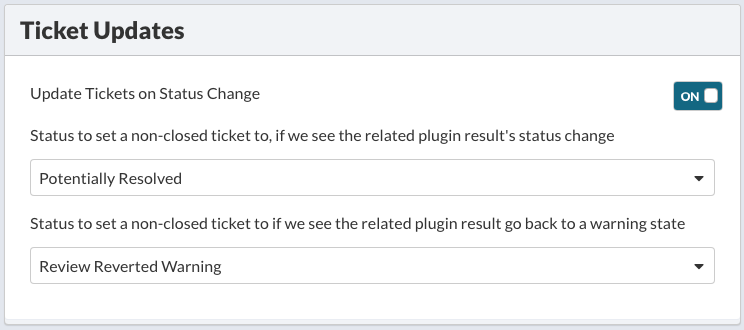
Once an initial ticket for an issue has been created, Watchman Monitoring can continue to update the status of the ticket by enabling Ticket Updates. A unique status can be assigned when a warning state clears and/or when a cleared warning reverts. Applying unique status to tickets in these circumstances can be used to curate custom views or perform various actions.
Tip
Additional Status can be added to a Service Board in ConnectWise by navigating Setup Tables > Service Board List > Status List. Learn more…
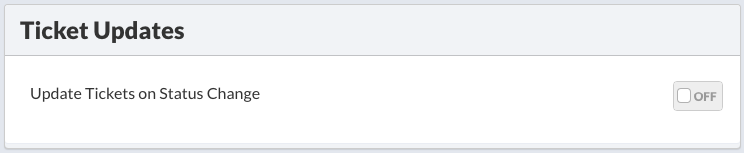
Enable Ticket Updates by clicking the switch to On.

Once enabled, additional plugin result status will be displayed.
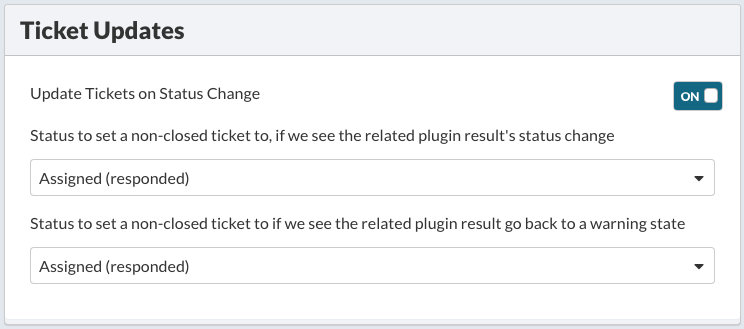
Select the appropriate status for each plugin result state change.
Warning
If the selected status does not exist in the service board, the ticket will be set to Pending. Additionally, a “Selected ticket status is not available in all mapped service boards.” warning will be displayed below the status dropdown. To avoid this issue and warning, please ensure the status is configured in all of your service boards.
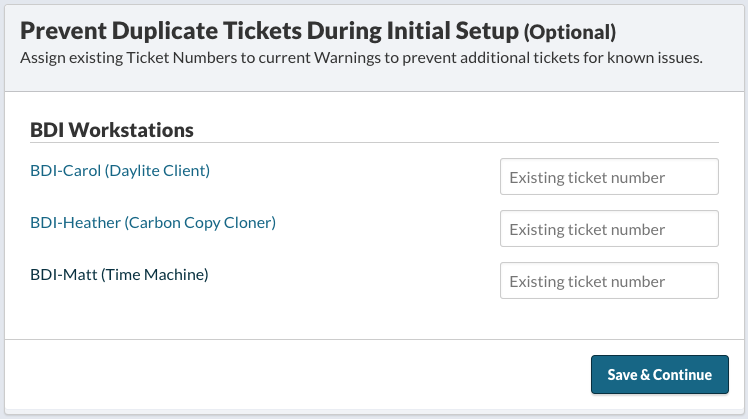
Prevent Duplicate Tickets During Initial Setup
If you have used Watchman Monitoring for a while, you may already have existing tickets created in your ConnectWise. You can optionally assign existing Ticket Numbers to current Warnings to prevent additional tickets for known issues. Enter the existing ticket number(s) and click Save & Continue when finished.
Step 7
Complete Setup & Activate ConnectWise
For the final step, click the Activate ConnectWise button to complete setup and activate your ConnectWise integration.
You can return to any of these steps using the ConnectWise integration menu on the left sidebar.
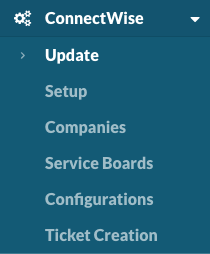
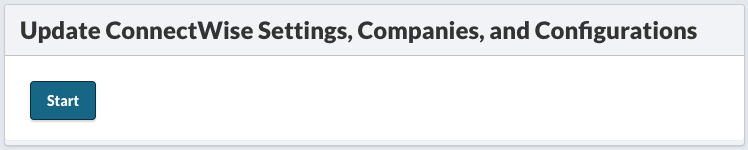
If you have made changes, added companies, or added new configurations, be sure to Update your ConnectWise integration before proceeding to other areas of the configuration by pressing the Start button.
Using the Watchman Monitoring Integration
Viewing ConnectWise Tickets from Watchman Monitoring Dashboard
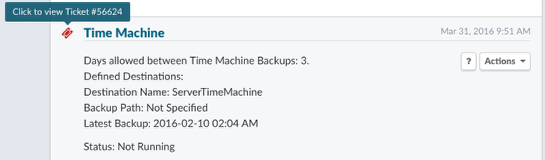
Clicking the ticket icon will take you to the ConnectWise ticket for this computer. When the ticket icon is visible next to a plugin, that plugin is muted by ConnectWise. Hovering over the ticket icon will show the ConnectWise ticket number.
Permalink: https://watchmanmonitoring.com/connectwise-manage-integration