About Reference Email Addresses for Computers and Groups
Reference Email Addresses allow you to associate a contact email address for a Computer or an entire Group of computers. Reference Email addresses are provided in email alert notifications and tickets created in integrated ticketing systems.
Warning
Watchman Monitoring will NOT send email on your behalf to reference emails.
Tip
Subscribers using the Watchman Monitoring Zendesk Integration with Private Ticket Creation enabled will have the option to silently create tickets using this email address as the ticket requester.
Enabling Reference Email
Navigate to your Account page to enable Reference Email.
Slide the On/Off button to On.

Click Save.

Group Reference Email
Computers in a Group with a Group Reference Email configured will inherit the reference email. The Group Reference Email can be individually overridden by setting a Computer Reference Email as described in the next section.
Note
The Group Reference Email is ideal for scenarios where you have a single point of contact for a Group, Company or Organization. Computers without a Reference Email configured will fall back to the Group Reference Email.
Setting Group Reference Email
To add a Reference Email to a group, navigate to one of your groups.
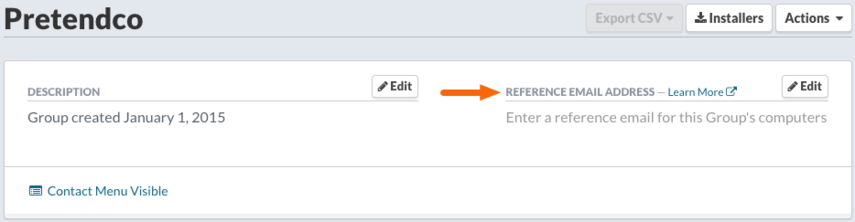
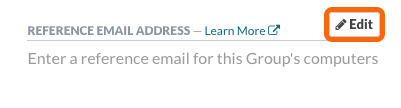
Locate the Reference Email Address field, and click the Edit button.
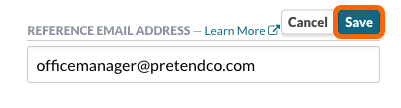
Enter the email address, and click the Save button.
Computer Reference Email
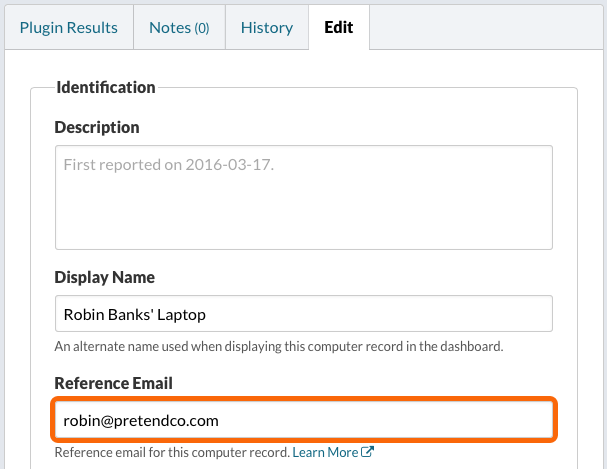
A Reference Email address can be assigned to an individual computer. This address will supersede the group Reference Email address.
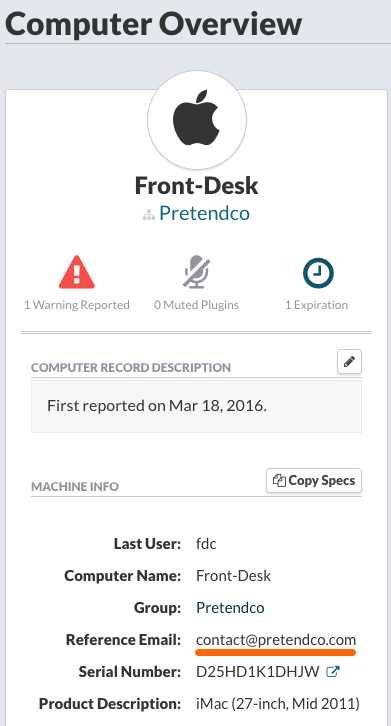
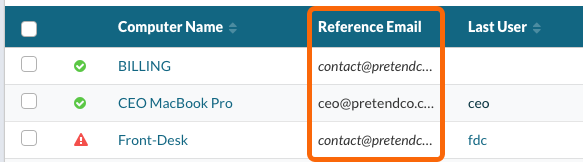
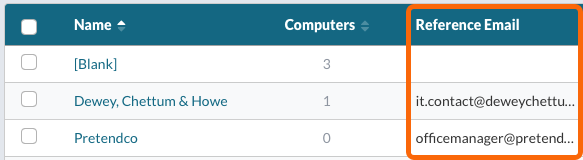
Email addresses listed in italics are the Group Reference email, roman typed Email addresses are set specifically for the computer.
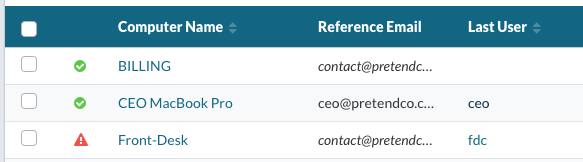
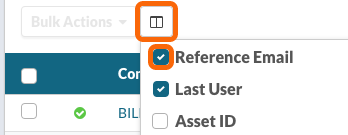
To view the Reference Email address(es) in the group list view, select Reference Email from the Columns listing.
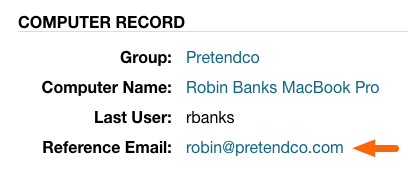
If a Reference Email is not set, a link to set one is provided under Machine Info.
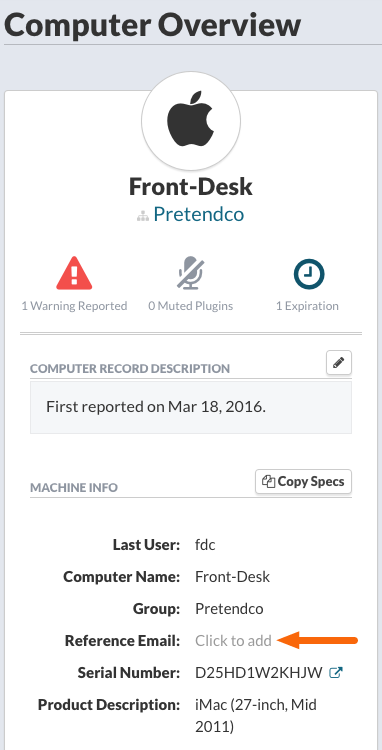
The link will open the Edit tab for the computer to the Reference Email field.
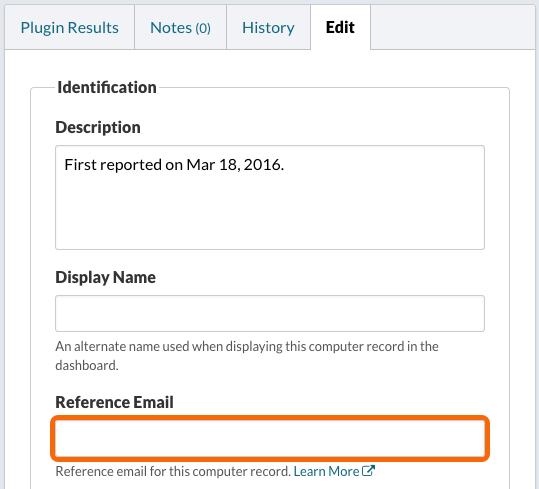
Enter the preferred Reference Email.
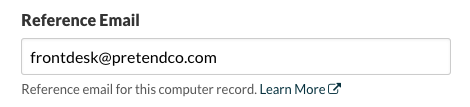
Finally, click Save to save the change to the computer record.

Reference Email Locations
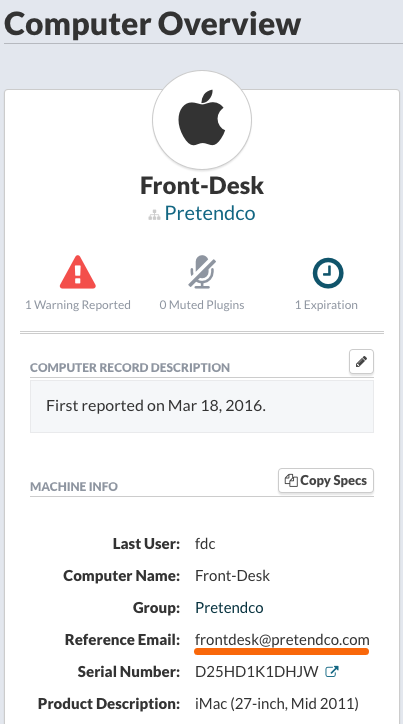
The Reference Email will be displayed in a number of locations including the Machine Info in the Computer Record, in Group and Computer lists as a column, and in notification emails or tickets.
Computer Overview > Machine Info
Computer Overview > Edit tab
Computer / Group Columns
Computer listings.
Group listings
Email Notifications
The Reference Email will be included with the alert notification email.
Purging Reference Email Data
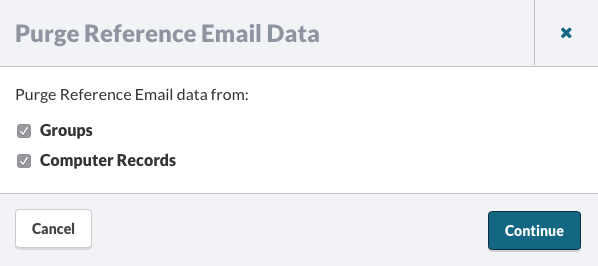
You can purge all Reference Email data using the Purge… option. Use this option to remove all Reference Email addresses from Groups and/or Computers.
Warning
Purging Reference Email addresses is not a reversible process.
Navigate to your Company page to enable Reference Email.

Select Groups and/or Computer Records to purge all Reference Email settings and click Continue.
You will receive a notification that a job has been scheduled to perform the requested purge of Reference Email data.

Backfill Reference Email
If you store an email address as either the Group name, in the Computer Description or as the Asset ID, and perform a purge of the Reference Email data, you can utilize this process to backfill and populate the Reference Email field from an email address found in the Group name, Computer Description or Asset ID field.
To trigger a backfill of reference email addresses, simply turn off reference emails (and click the Save button), and then turn this feature back on.
Note
Watchman Monitoring automatically performs the backfill process when Reference Email is enabled for the first time.
Permalink: https://watchmanmonitoring.com/reference-email-usage