Two-factor Authentication options in Watchman Monitoring
Two-factor authentication is available to all users of Watchman Monitoring. Additionally, Administrators of a subscription can require that their employees and fellow Administrators use Two-factor Authentication as well.
Tip
To configure Two-factor Authentication (2FA or TFA) for a user, see Setting up Two-factor Authentication.
Accounts can enforce Two-factor Authentication
As an administrator of an account, you can require that your users with Employee Administrator level permission must also perform Two-factor Authentication to access the Watchman Monitoring Dashboard.
Enable Two-factor Authentication for an Administrator
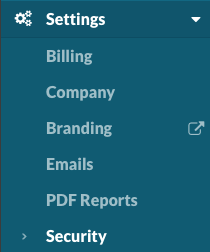
Navigate to Settings > Security or https://app.monitoringclient.com/settings/security/two-factor
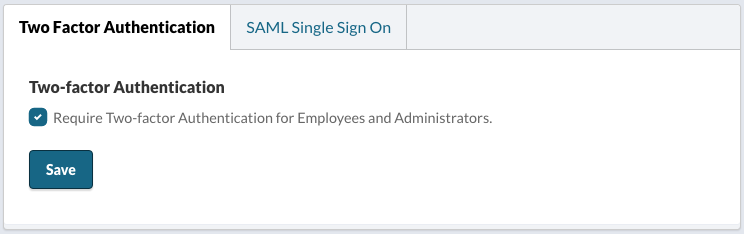
Once an administrator of an account has successfully configured Two-factor Authentication for their user account, the option to enforce Two-factor Authentication for the Account is enabled.
Important
An Administrator must have Two-factor Authentication enabled to enable Account-wide Two-factor Authentication.
Warning
End Users or Client Users are rarely added, their access is read-only, and to ease support issues for our subscribers, end users will not be forced to use Two-factor Authentication. End users may, however, elect to enable Two-factor Authentication regardless of the company-wide policy.
Two-factor Authentication Enforcement
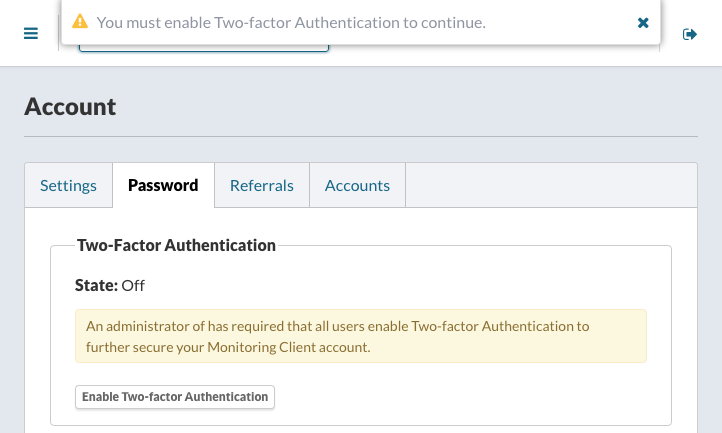
When Two-factor Enforcement is required for the entire account, Users who have not yet enabled Two-factor Authentication will be prompted to do so upon their next login.
Resetting Two-factor Authentication
Two-factor Authentication can be reset or otherwise disabled by Administrators in Settings > Users.
From the Actions menu for the user, select Disable 2FA.
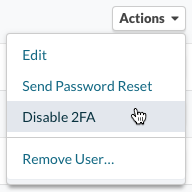
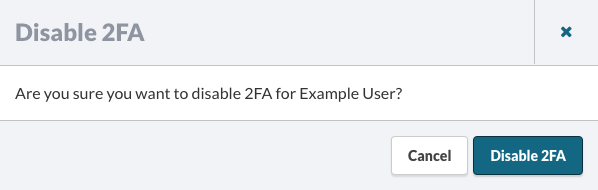
A confirmation for disabling 2FA for the user will be displayed. Click Disable 2FA to disable Two-factor Authentication for the user.
Note
If company-wide Two-factor Authentication enforcement is enabled, the user will be prompted to enable Two-factor Authentication on their account upon next login.
Warning
This action is not reversible. Once Two-factor Authentication is disabled on a user, the user will need to enable Two-factor Authentication again.
Permalink: https://watchmanmonitoring.com/two-factor-authentication