PDF Report Settings
Report settings allows you to control the paper size (US Letter vs A4), Logo placements, header and footer text for Group Reports and Computer Overview Reports.
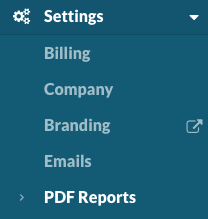
To edit the PDF Report settings, navigate to Settings > PDF Reports.
PDF Setup
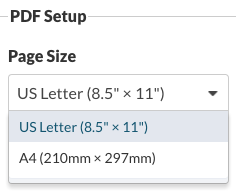
Page Size
Select your preferred Page Size: US Letter 8.5” x 11” or A4 210mm x 297mm.
Header Arrangement
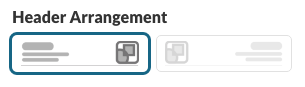
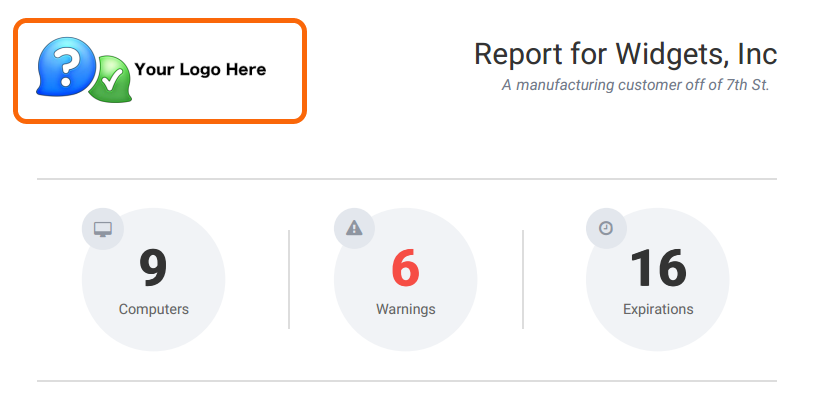
You can choose to have your header text Left-aligned, or Right-aligned. If you have a custom logo, the logo will display to the right of the header text for Left-aligned text, and left of the header text for Right-aligned text.
Header Logo
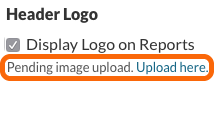
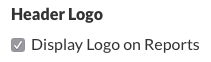
Select the checkbox next to Display Logo on Reports to display your logo on Group Reports and Computer Overview Reports.
Warning
If Pending image upload is displayed, please submit your logo using the Custom Branding form.
Note
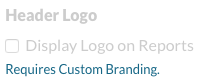
A customized logo for PDF Reports is part of the Watchman Monitoring Custom Branding. Upload your logo and/or sign up for Custom Branding using our Custom Branding form.
Group Report PDF Settings
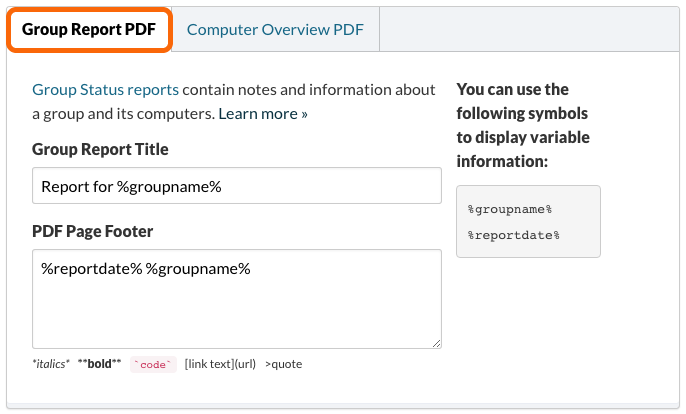
Customize your Group Report PDF Title and Page Footer. The %groupname% and %reportdate% variables are available to you to further customize your report.
Note
Markdown *italics* **bold** `code` [link text](url) >quote is supported in the PDF Page Footer.
See an example Group Status report.
Computer Overview PDF Settings
Customize your Computer Overview PDF Document Header and Page Footer. The %groupname% %reportdate% and %computername% variables are available to you to further customize your report.
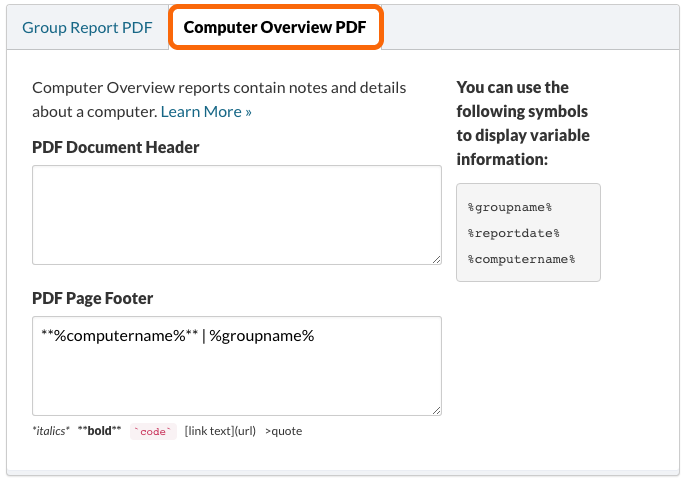
See an example Computer Overview report.
Tip
Include your contact information, such as address, phone number and web site in the PDF Page Footer.

Click Save to save any changes made to your PDF Report Setup.
Related Articles
Permalink: https://watchmanmonitoring.com/pdf-report-settings