Watchman Monitoring Account Preference Settings
Adjust your timezone, display density, email preferences, and password in the Watchman Monitoring Account Preference Settings.
Your Watchman Monitoring Account Profile
To access your account, navigate to https://app.monitoringclient.com/settings/profile or
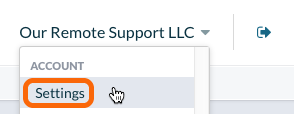
From the Account menu in the upper right corner of the Server Dashboard, select Settings.
Settings
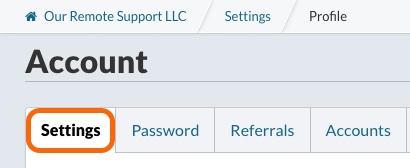
To adjust Account preferences, click the Settings tab.
Contact Info
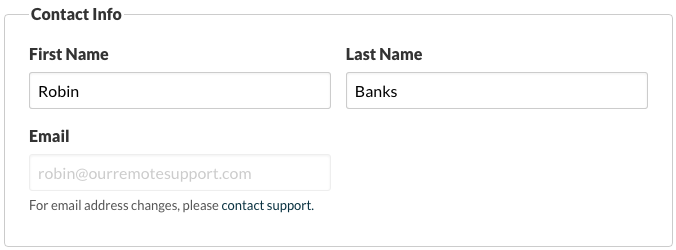
Edit your First Name and Last Name for the account.
Note
To edit an account email address, contact support or add a new user.
Dashboard Settings
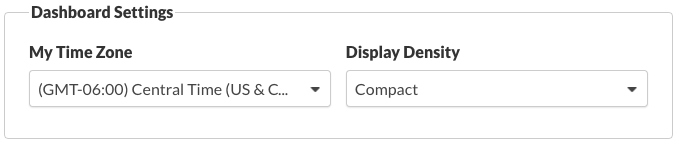
Each user will inherit the company’s time zone setting, but can change the time zone for their user account.
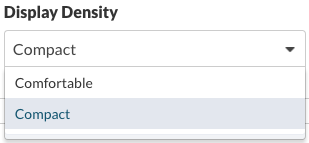
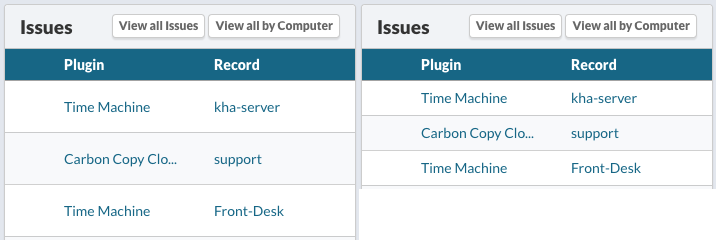
Adjust your Display Density.
- Comfortable spacing.
- Compact spacing
Email Preferences
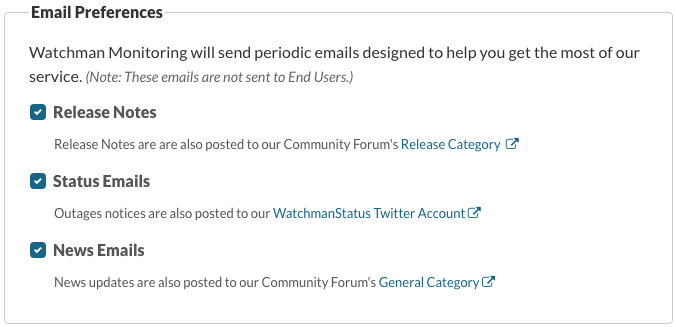
Select which periodic emails (Release Notes, Status Emails or News Emails) to receive from Watchman Monitoring.

Click the Save button to save your settings changes.
Password
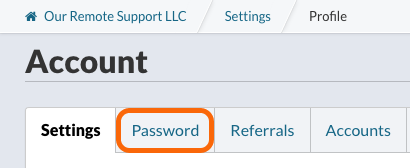
To change your password or enable two-factor authentication, click the Password tab.
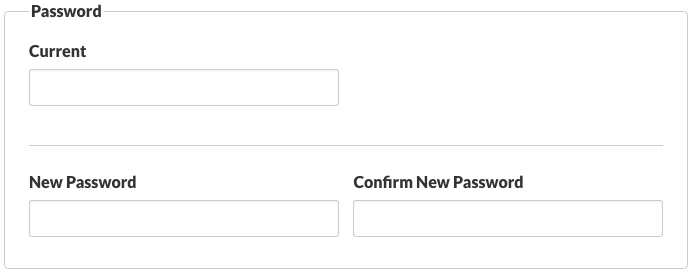
To change your password, enter your Current password, your New Password, and Confirm New Password. Then click Save.
Note
Learn more Setting up Two-factor Authentication.
Referrals
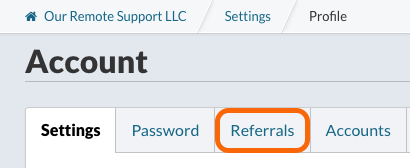
To submit or review Referrals, click the Referrals tab.
Note
Learn more How to refer Watchman Monitoring.
Accounts
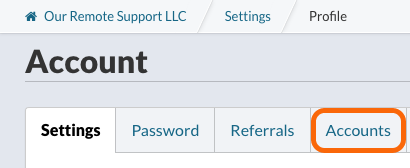
To switch to or add a Managed Account preferences, click the Accounts tab.
Note
Learn more about Setting Up A Managed Account.